How to connect your LinkedIn pages?

Hello!
Since you are here, we assume something probably went wrong while connecting your LinkedIn pages to Sociality.io — but no problem. We are always here to help. Let’s troubleshoot! ❤️
Here is step-by-step troubleshooting advice on resolving the possible issues:
1) Do you have the 'Super Admin' role on the Page?
If you're connecting a LinkedIn Page to your Sociality.io account, ensure that your personal LinkedIn account is a Super Admin of the Page.
To connect a LinkedIn Page to your Sociality.io account, we'll need to authenticate through your personal LinkedIn profile, which has administrative privileges on the Page you're looking to connect.

How to check your role on your LinkedIn Page in a snap:
Log in to your LinkedIn profile.
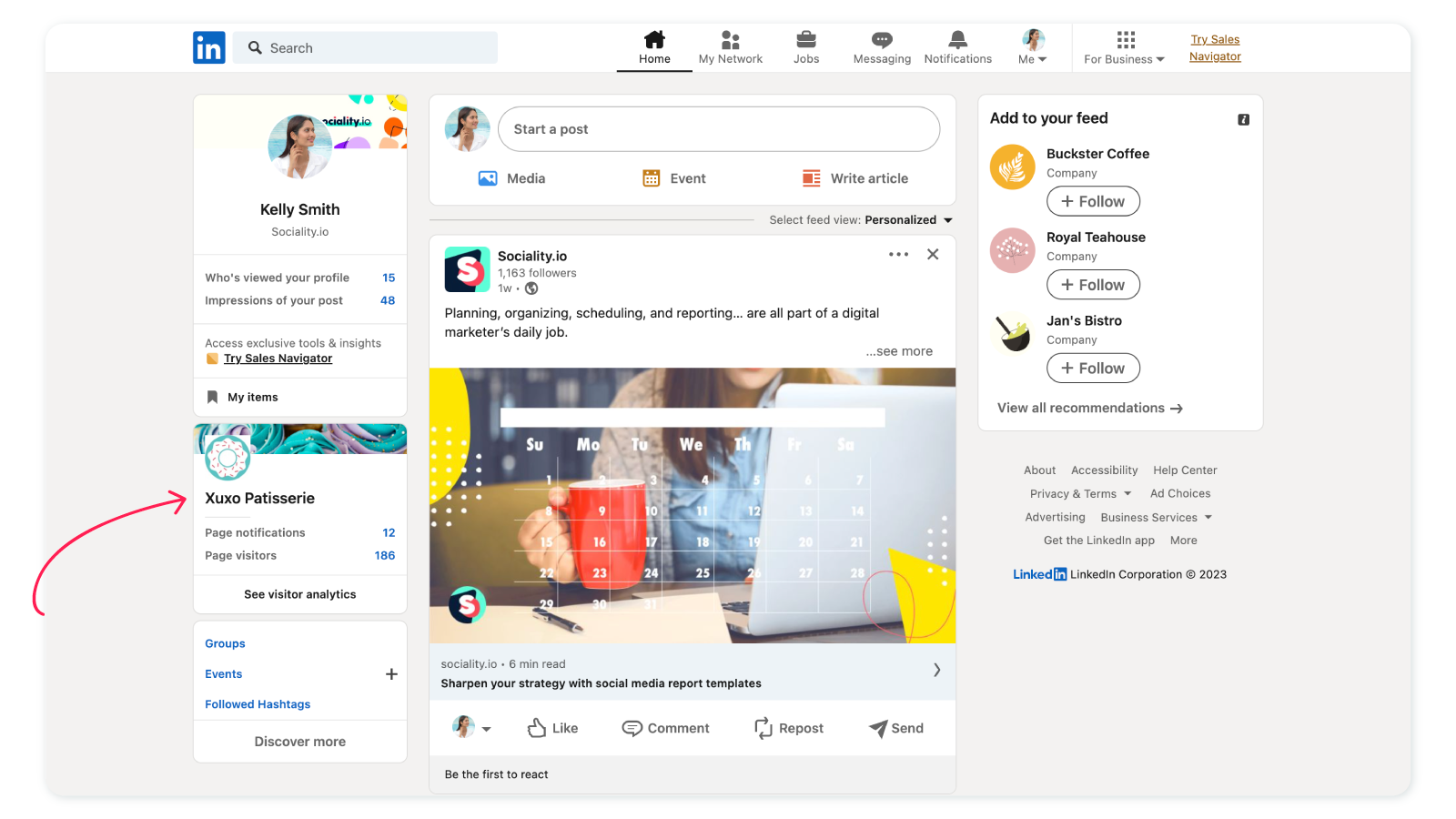
Go to your company profile on LinkedIn. You can find it on the left menu.
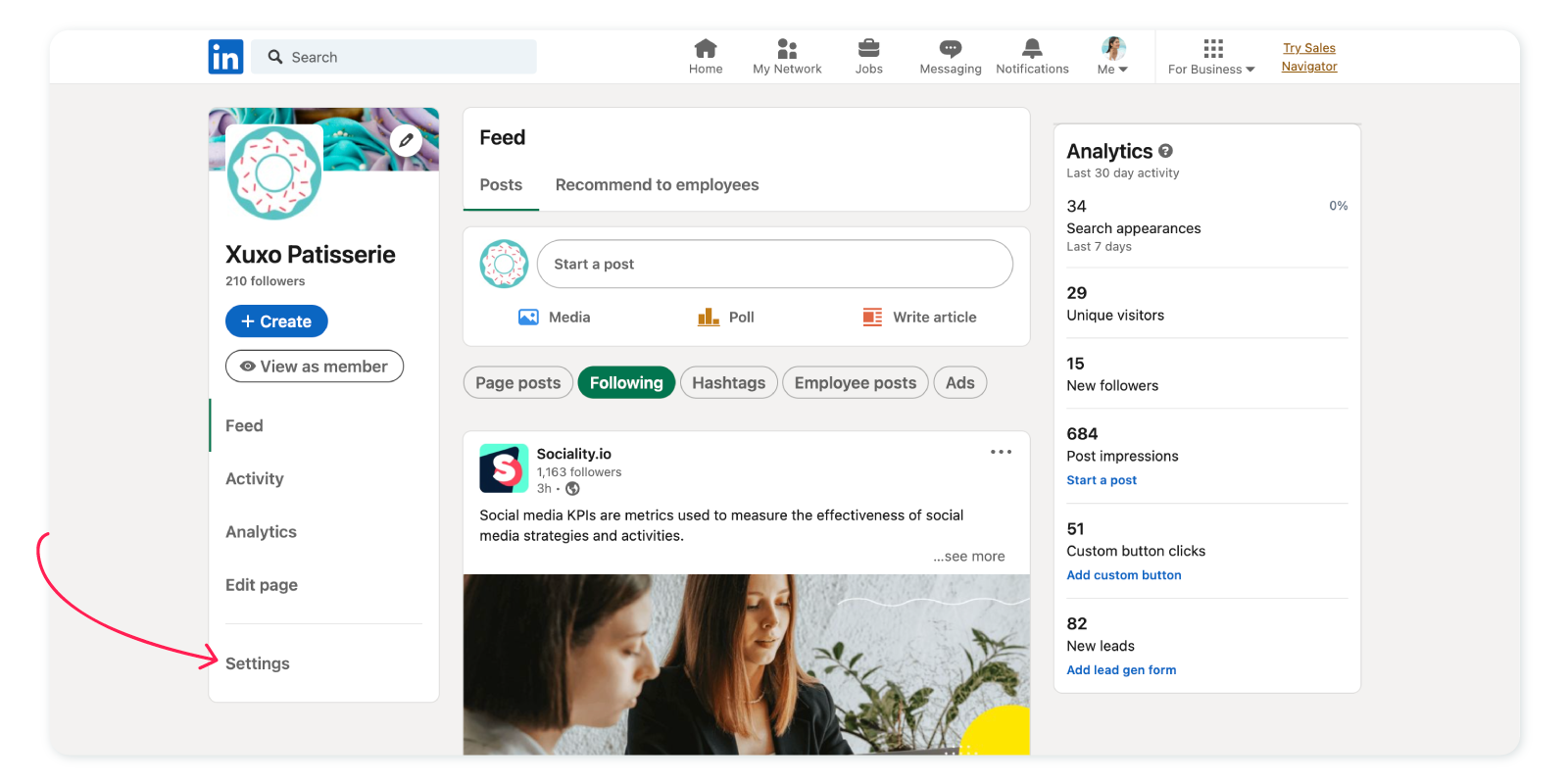
Click on 'Settings.'
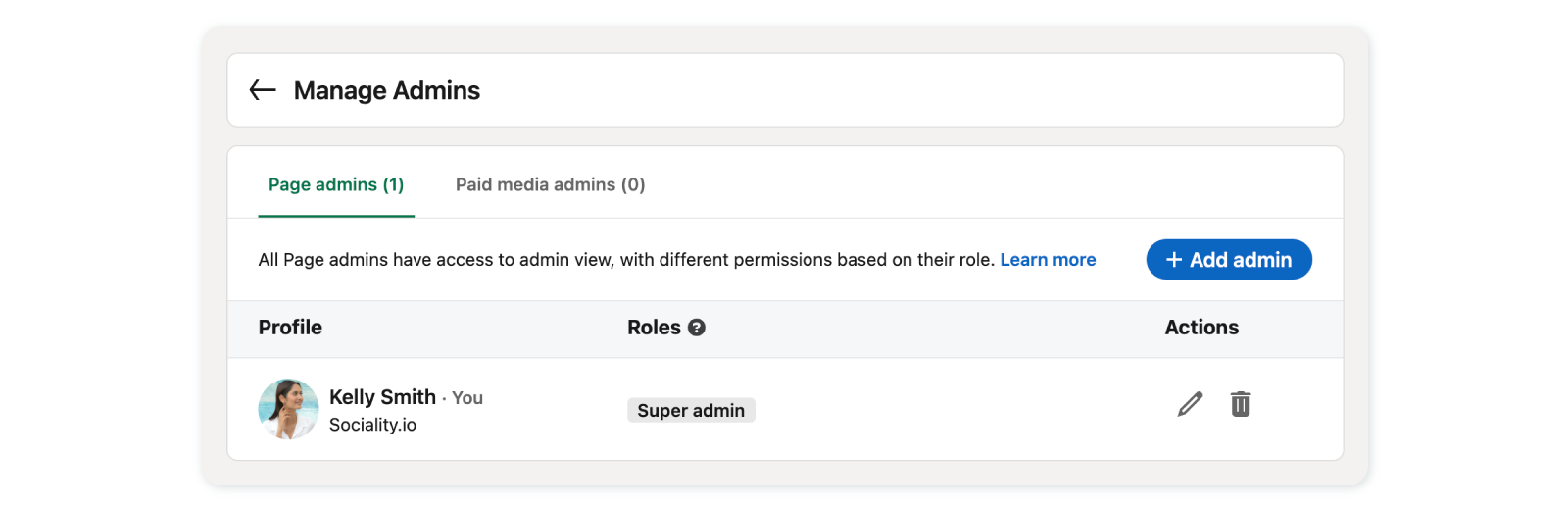
Navigate to the 'Manage Admins' section. There you will see your role on the page. Remember that your role must be 'Super admin' to connect your LinkedIn Page to your Sociality.io account.
See LinkedIn Page Admin Roles - Overview in the LinkedIn Help Center to learn more.
2) Connect your LinkedIn Pages to Sociality.io successfully
How to connect your LinkedIn Pages in a nutshell:
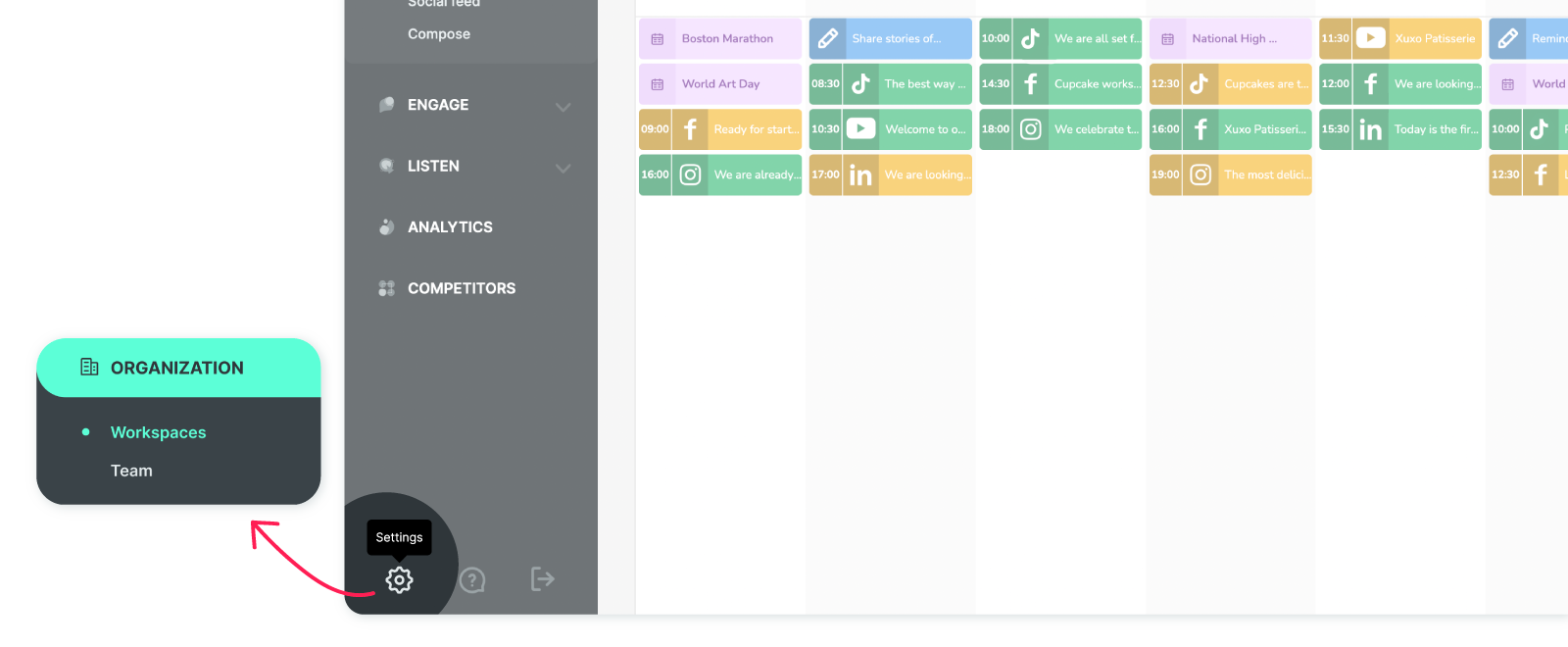
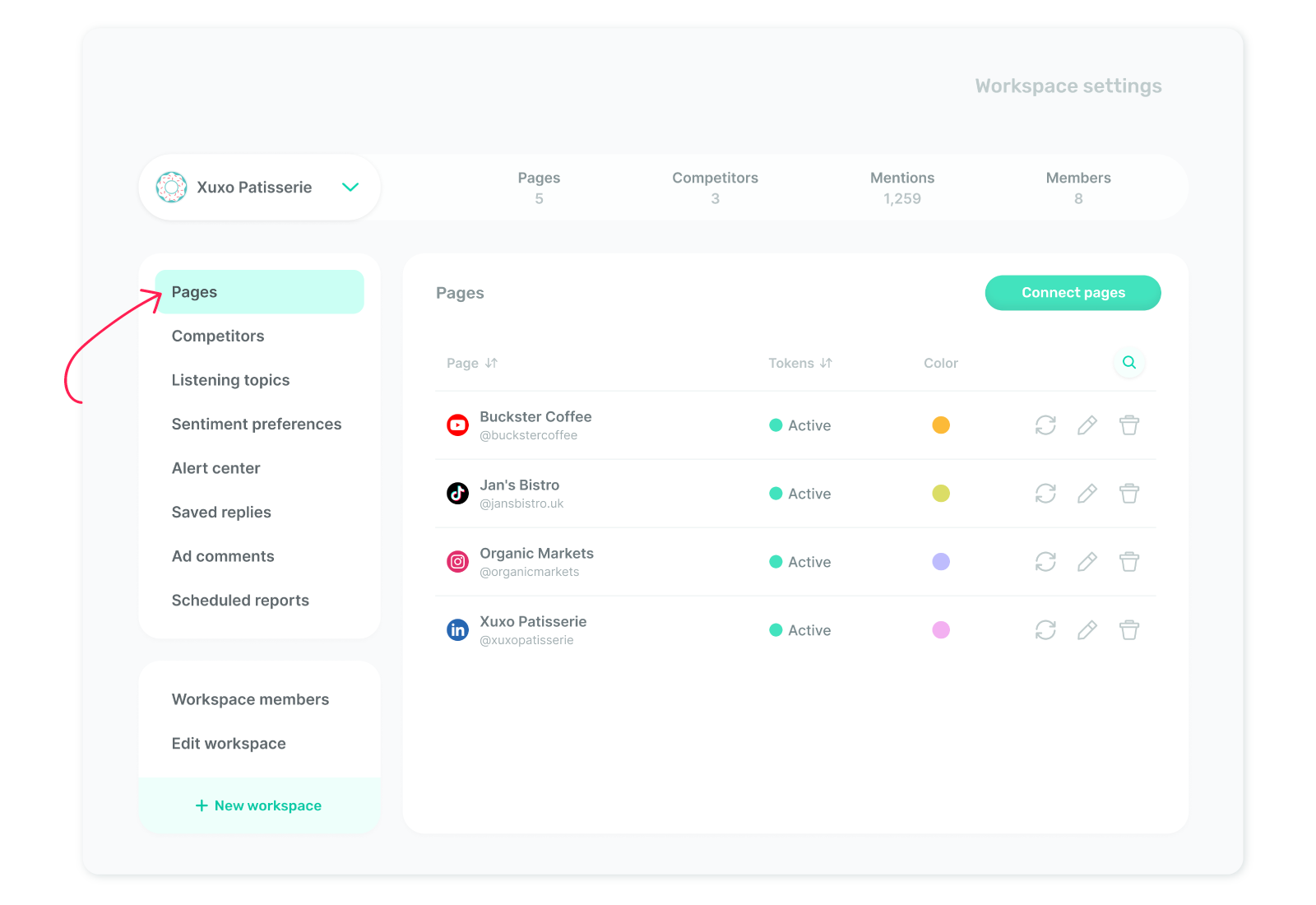
Click 'Settings,' and you’ll land directly in the 'Workspaces' section on the next screen.
From the left menu, click on 'Pages.'
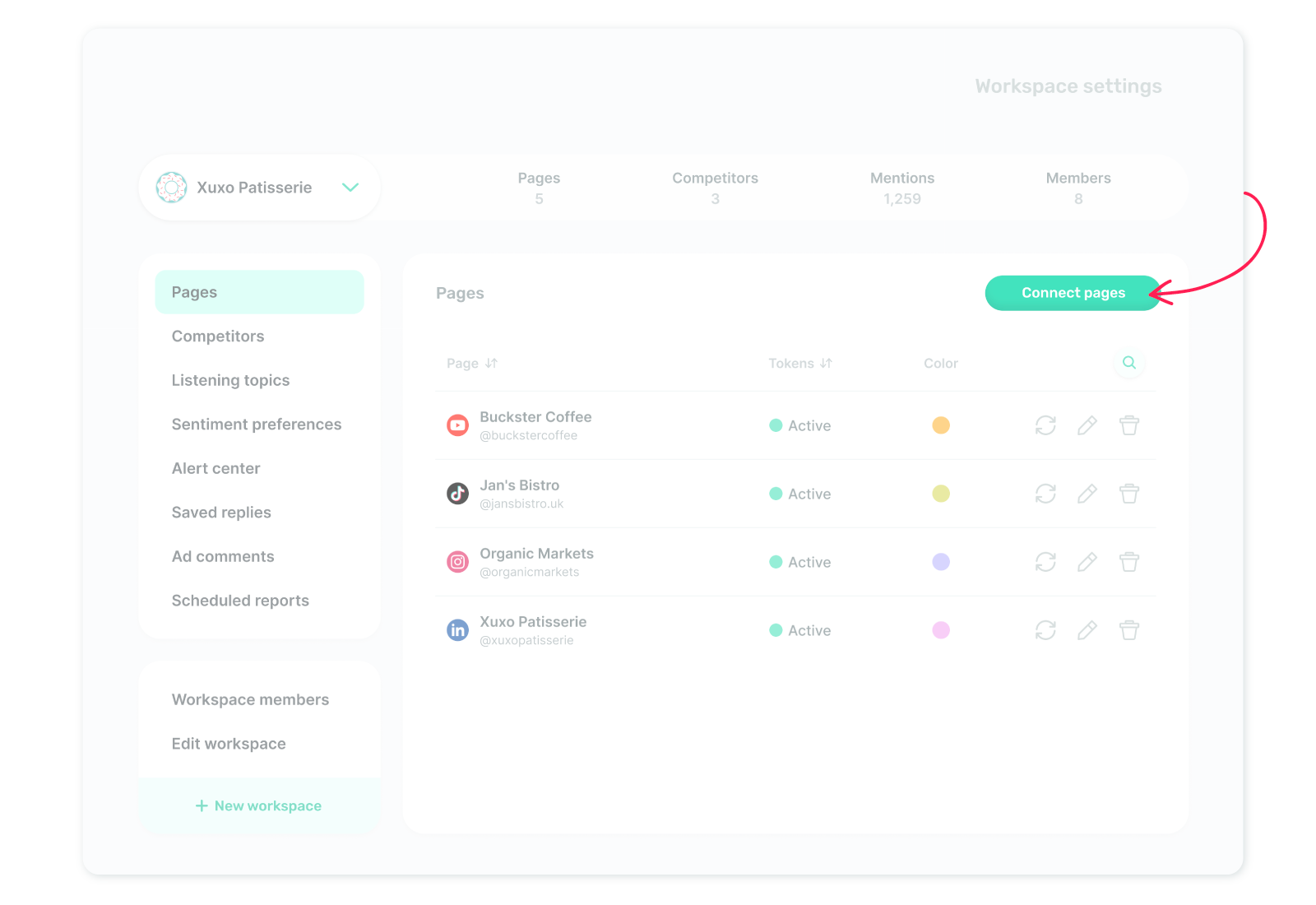
Click on ‘Connect pages’ to continue.
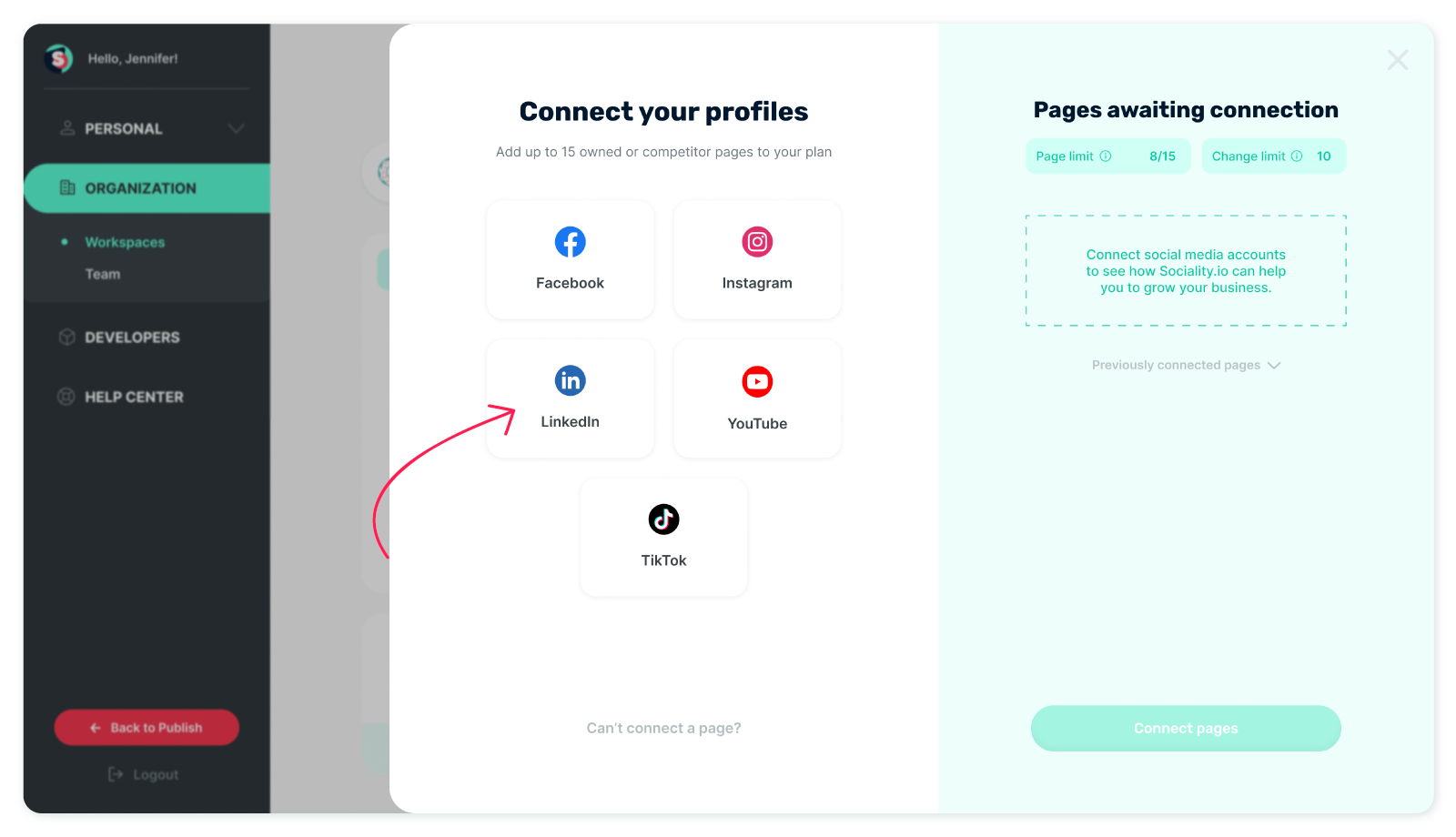
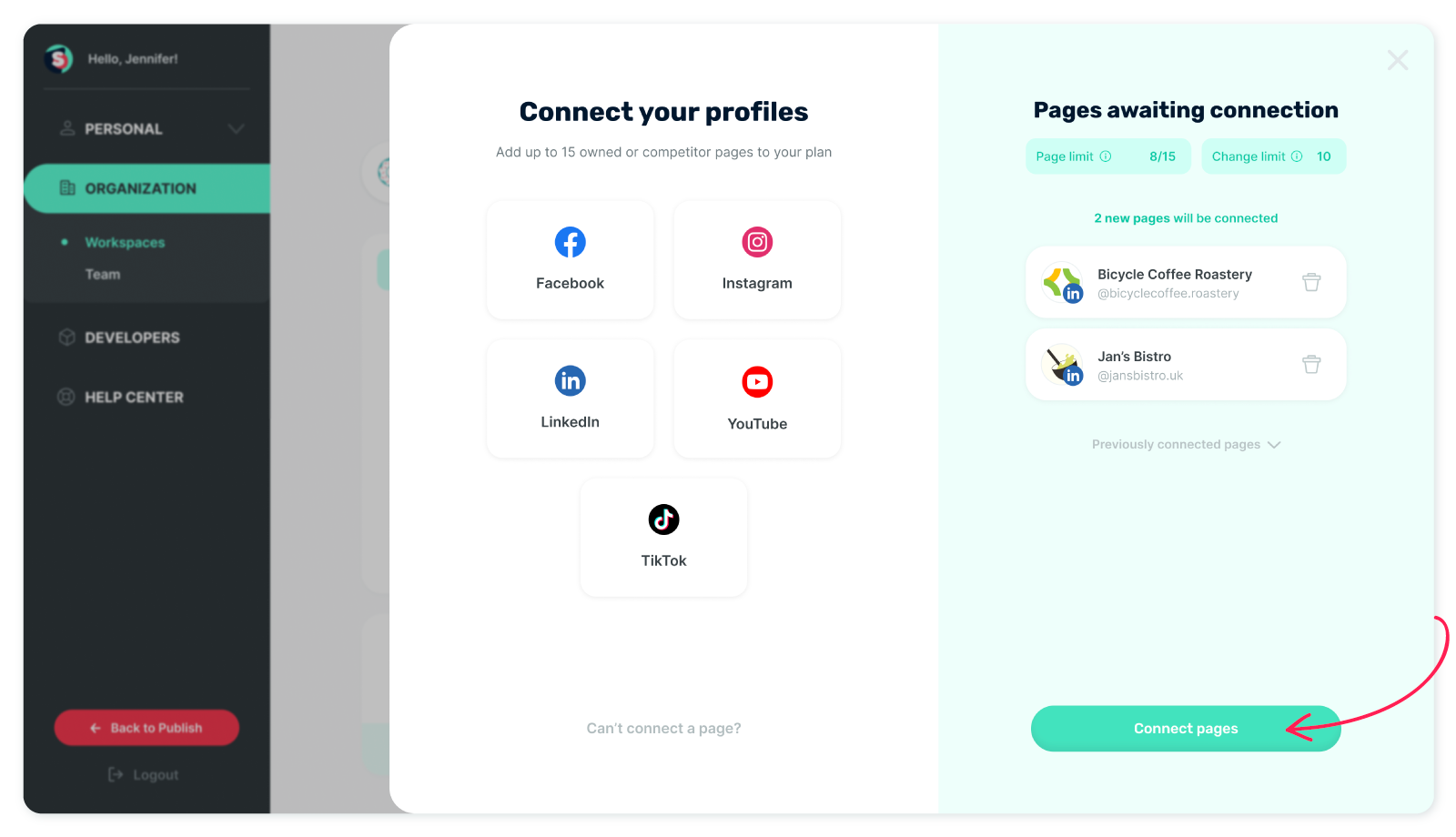
Select ‘LinkedIn’ when the 'Connect your profiles' screen appears.
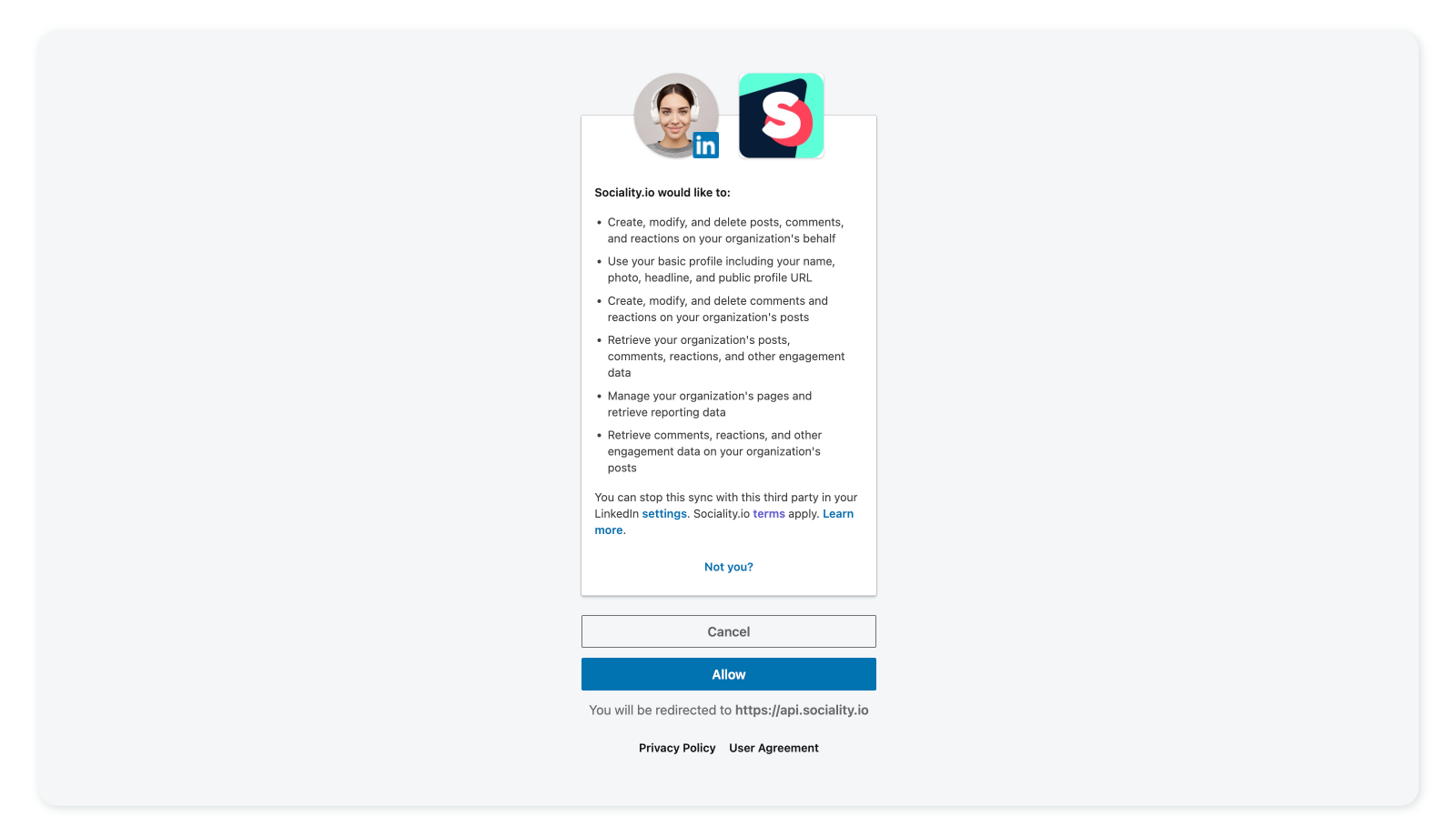
Please login to the LinkedIn page you are willing to connect with Sociality.io — if necessary. Or, authorize Sociality.io app access to your account on the appearing screen.
Choose the LinkedIn pages you want to add to Sociality.io from the displayed screen.
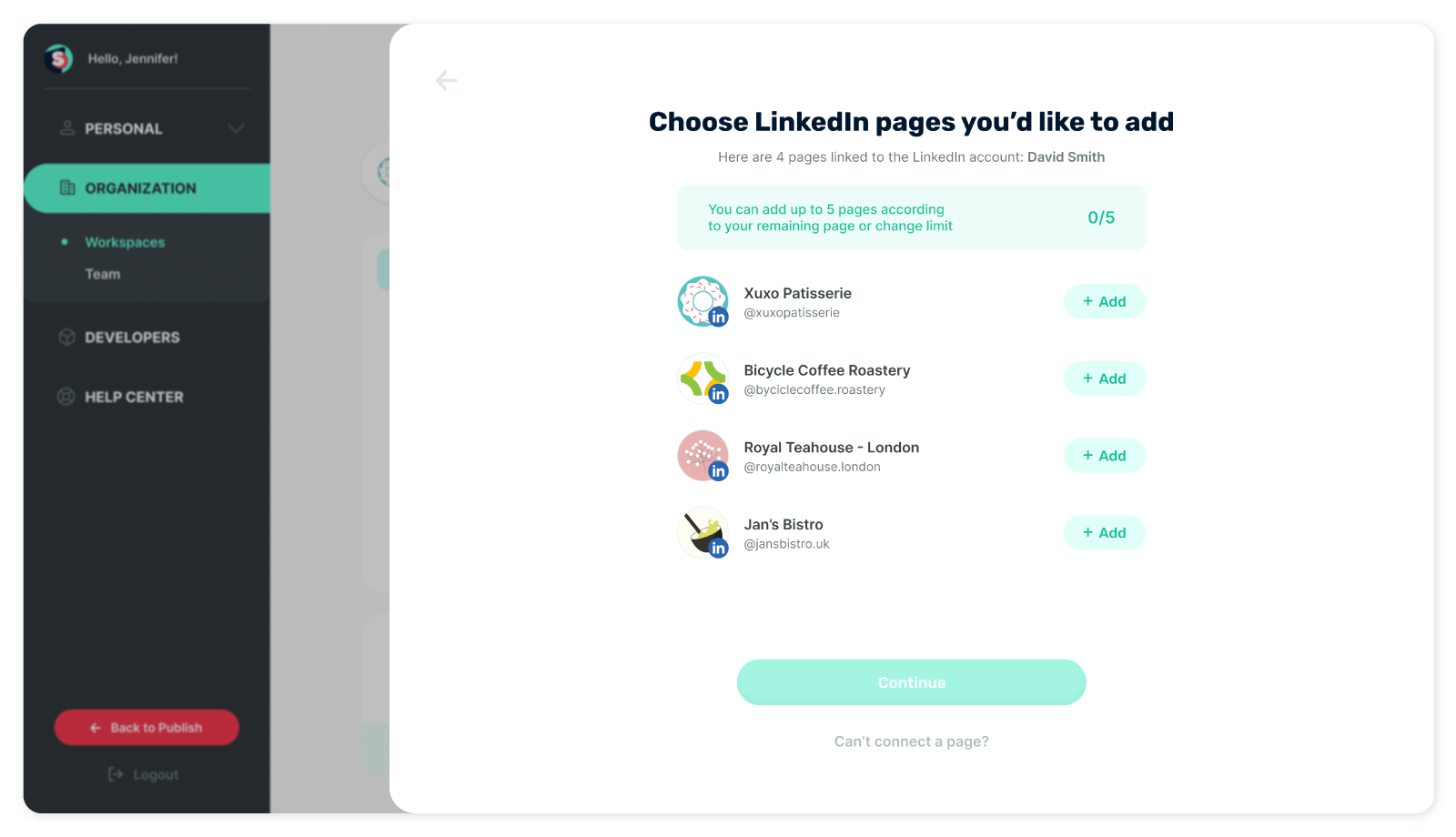
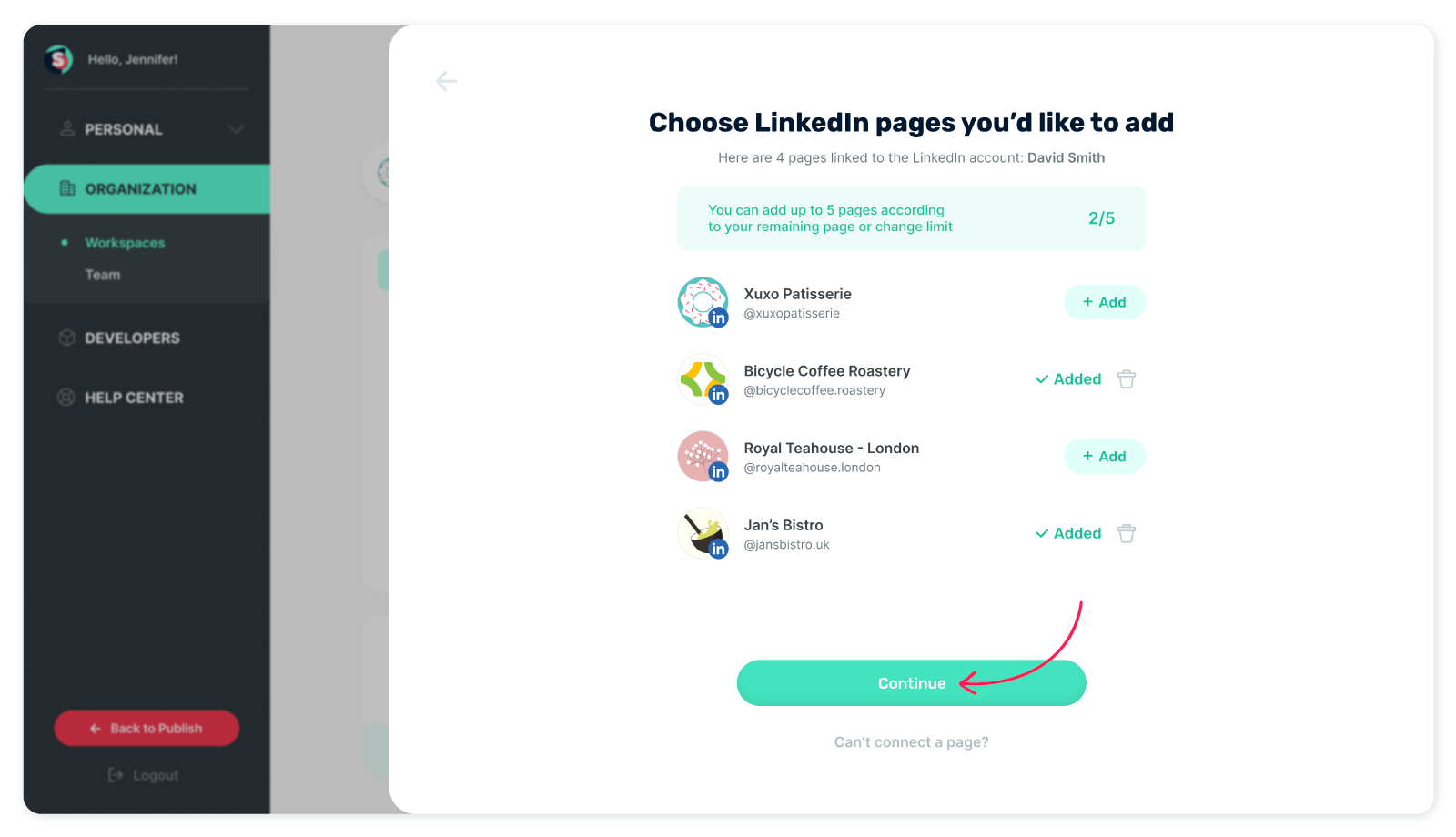
Once you’ve selected the pages to connect, click ‘Continue’.
Next, the pages you’ve added will appear under 'Pages awaiting connection.' Simply click 'Connect pages' button to proceed.
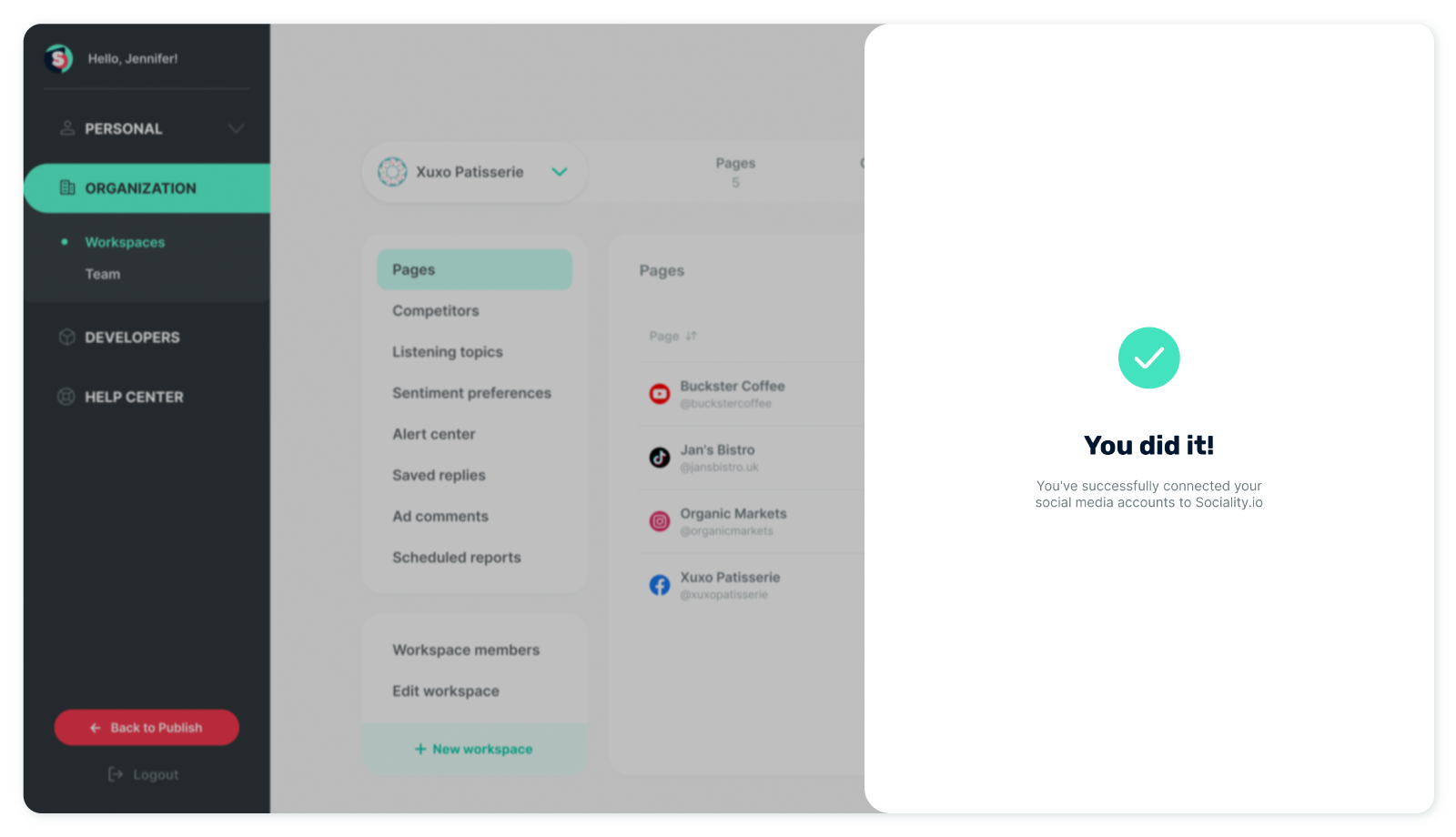
Cheers! 🎉 Your LinkedIn pages have been added to Sociality.io successfully.
Platform-specific page connection shortcuts:
Experiencing difficulties with page connections? 👉 Troubleshoot connecting pages to Sociality.io. Here is the solution checklist!