How to connect your Facebook pages?

Hello!
Since you are here, we assume something probably went wrong while connecting your Facebook pages to Sociality.io — but no problem. We are always here to help. Let’s troubleshoot! ❤️
Here is step-by-step troubleshooting advice on resolving the possible issues:
2) Checking your Facebook connection permissions
3) Connect your Facebook Pages to Sociality.io successfully
4) Still having trouble connecting your Facebook page?
1) Checking your page role
Begin by verifying that your personal Facebook profile holds the admin role for the respective Page. Alternatively, if your Page is integrated into a Facebook Business Suite account, it's essential to confirm that your permissions within that account are thoroughly configured.
Note: While we authenticate your Facebook Page through your personal profile, rest assured that we do not access your personal information or post content on your profile.
Determine if your Facebook Page is on New Pages Experience or Classic Pages Experience
To provide you with accurate instructions, we must first identify the specific Facebook experience you're using: the Classic Pages Experience or the New Pages Experience.
New Pages Experience
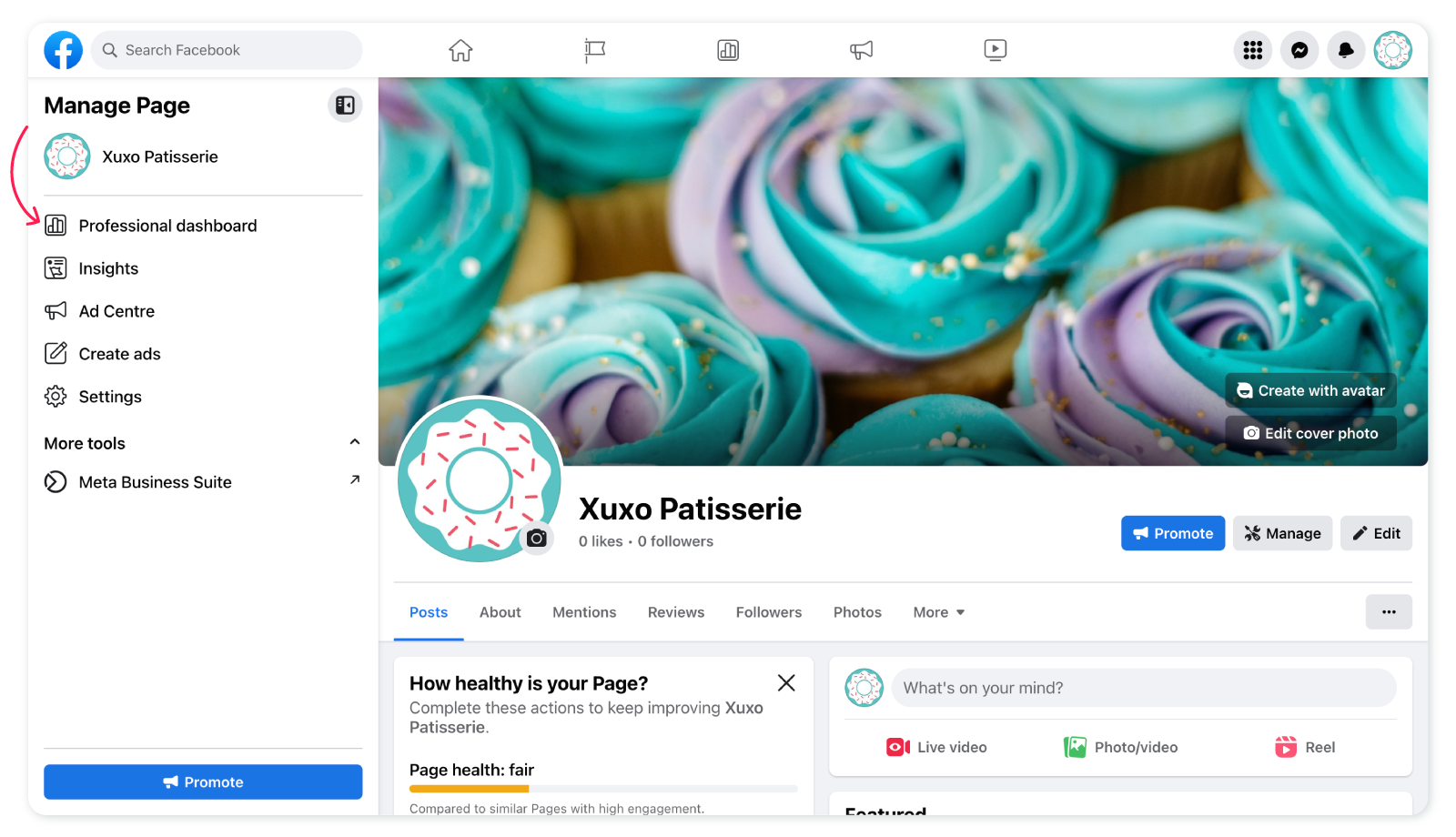
If, upon visiting your Facebook Page, you find the 'Professional dashboard' located in the 'Manage Page' section, this indicates that your Page is utilizing the New Pages Experience:
Classic Pages Experience
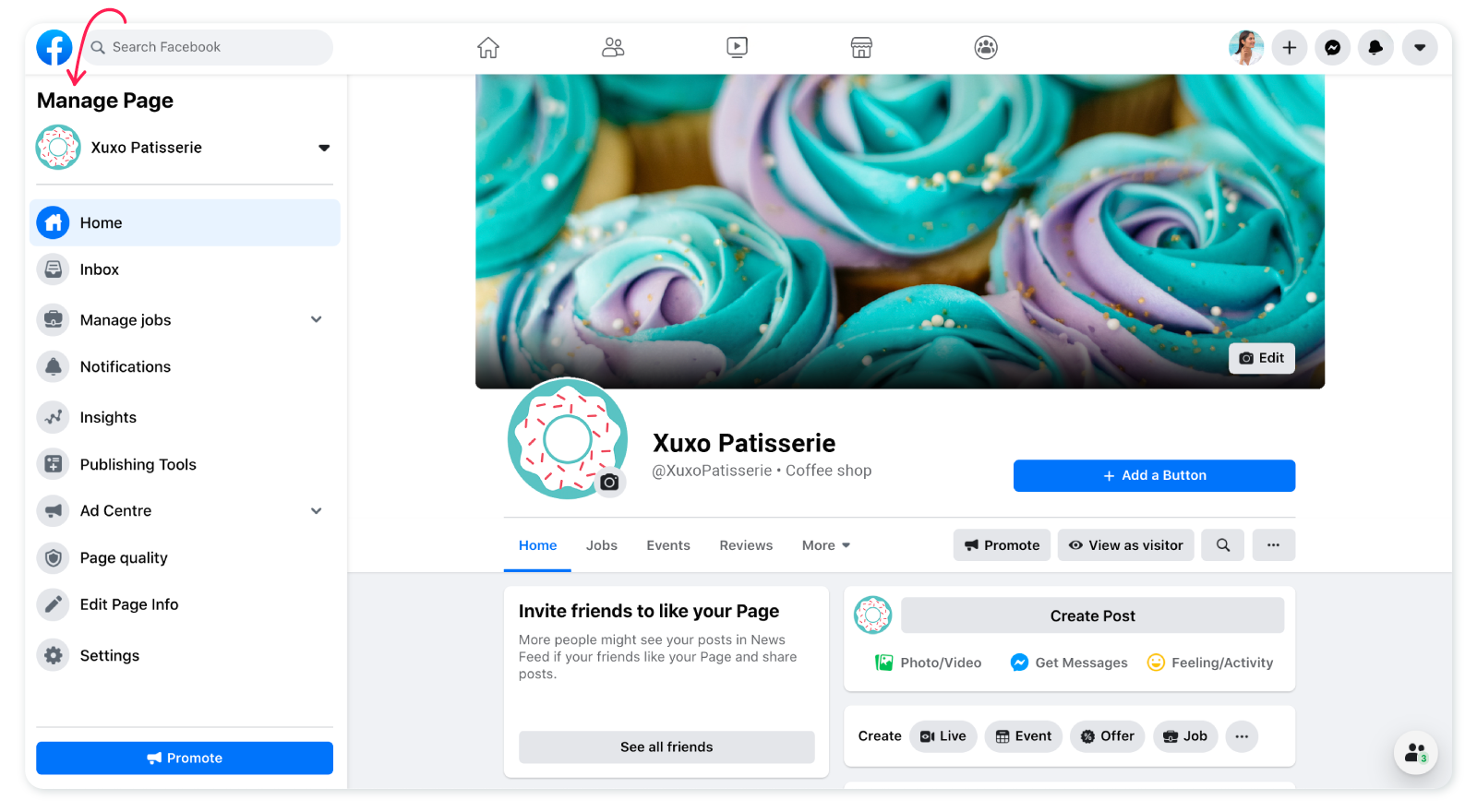
If your Page operates within the Classic Pages Experience, the presence of the "Professional dashboard" will be absent. Instead, you'll encounter a range of choices within the 'Manage Page' section, including options like Inbox, Insights, Publishing Tools, and Settings. The interface will look like on the following screen:
Troubleshoot Checklist for the New Pages Experience
Understand if your Facebook Page is part of the Meta Business Suite
Once you've figured out which Pages Experience your Page falls under, you'll also need to understand if it's connected to Meta Business Suite. This will help you find where to manage the roles for your Page.
Head over to Facebook and navigate to the list of Pages you can access.
Click on the Page you want to view.
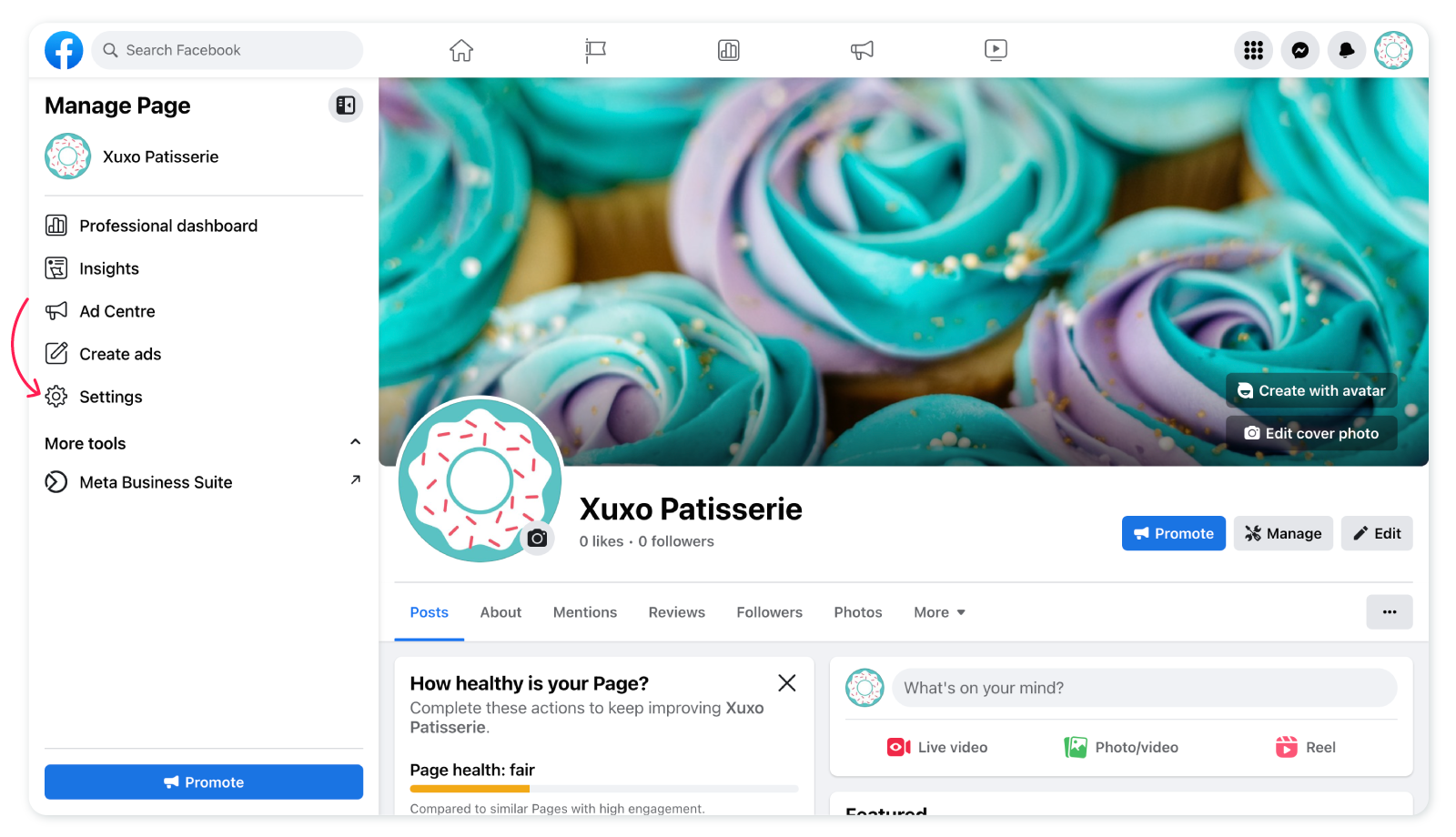
Once you're on your Page, click Settings in the left-hand sidebar.
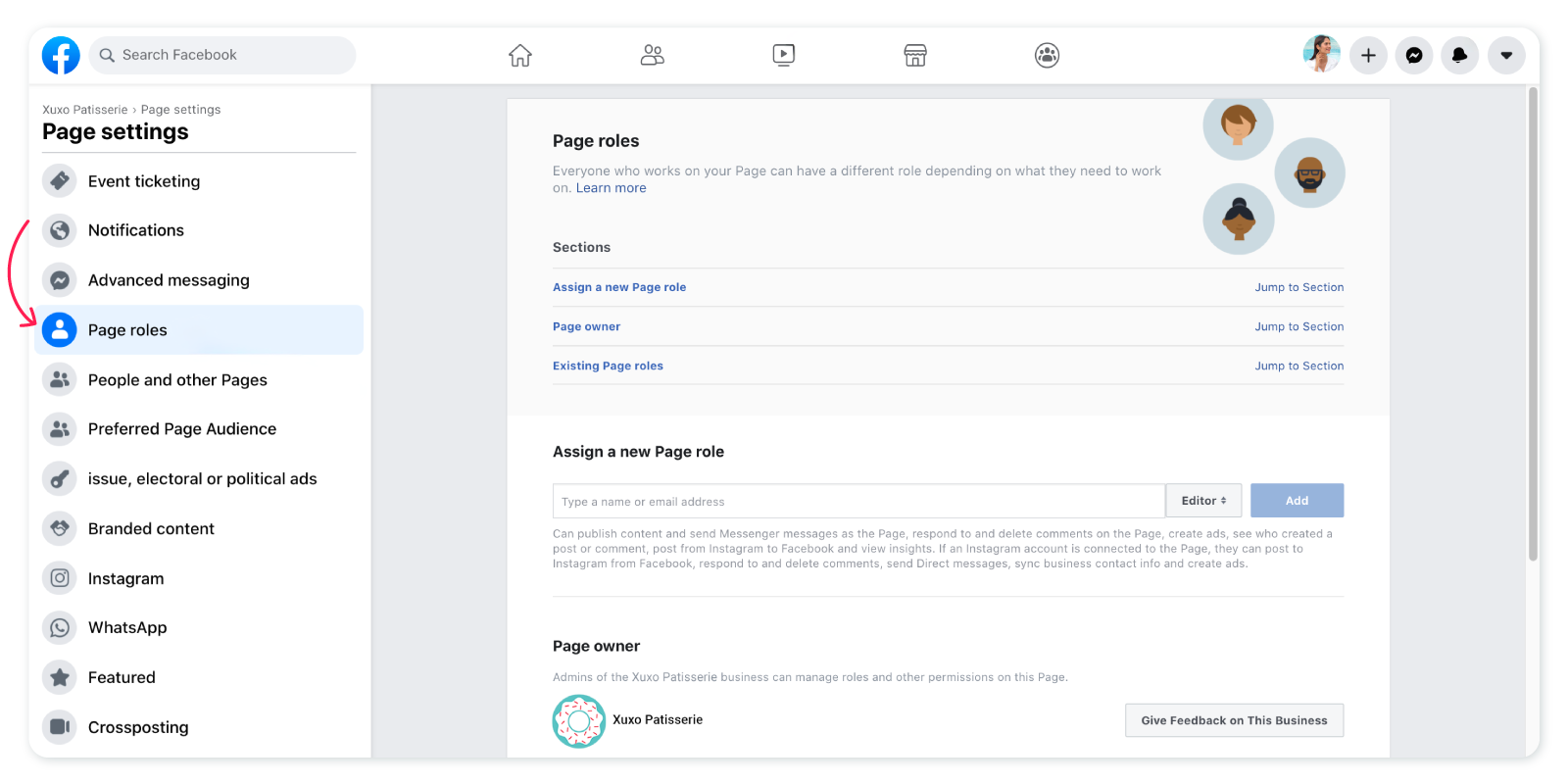
Click “Page roles” on the left-hand side.
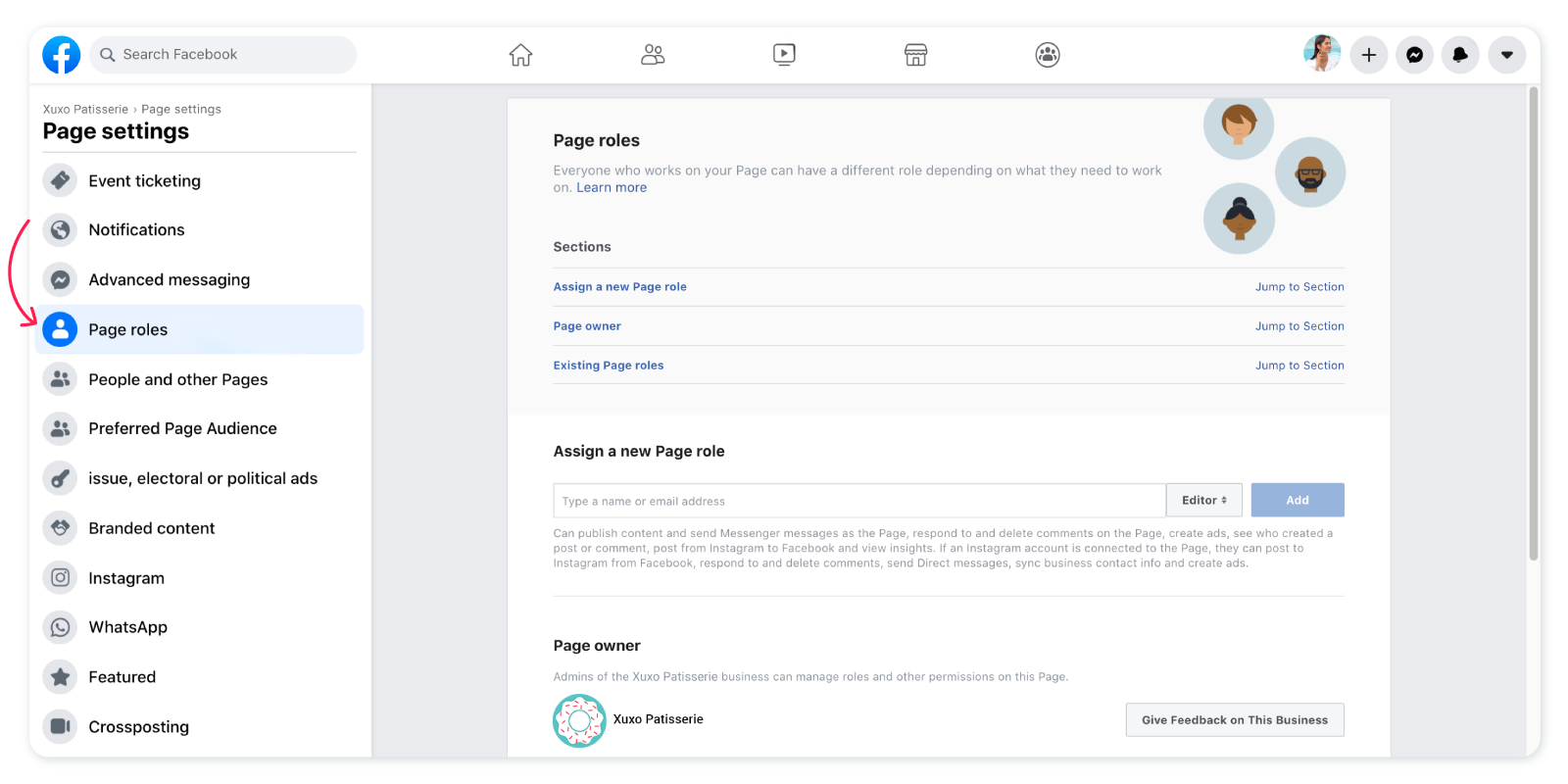
If you see anything listed under "Page Owner," your Page is connected with Meta Business Suite.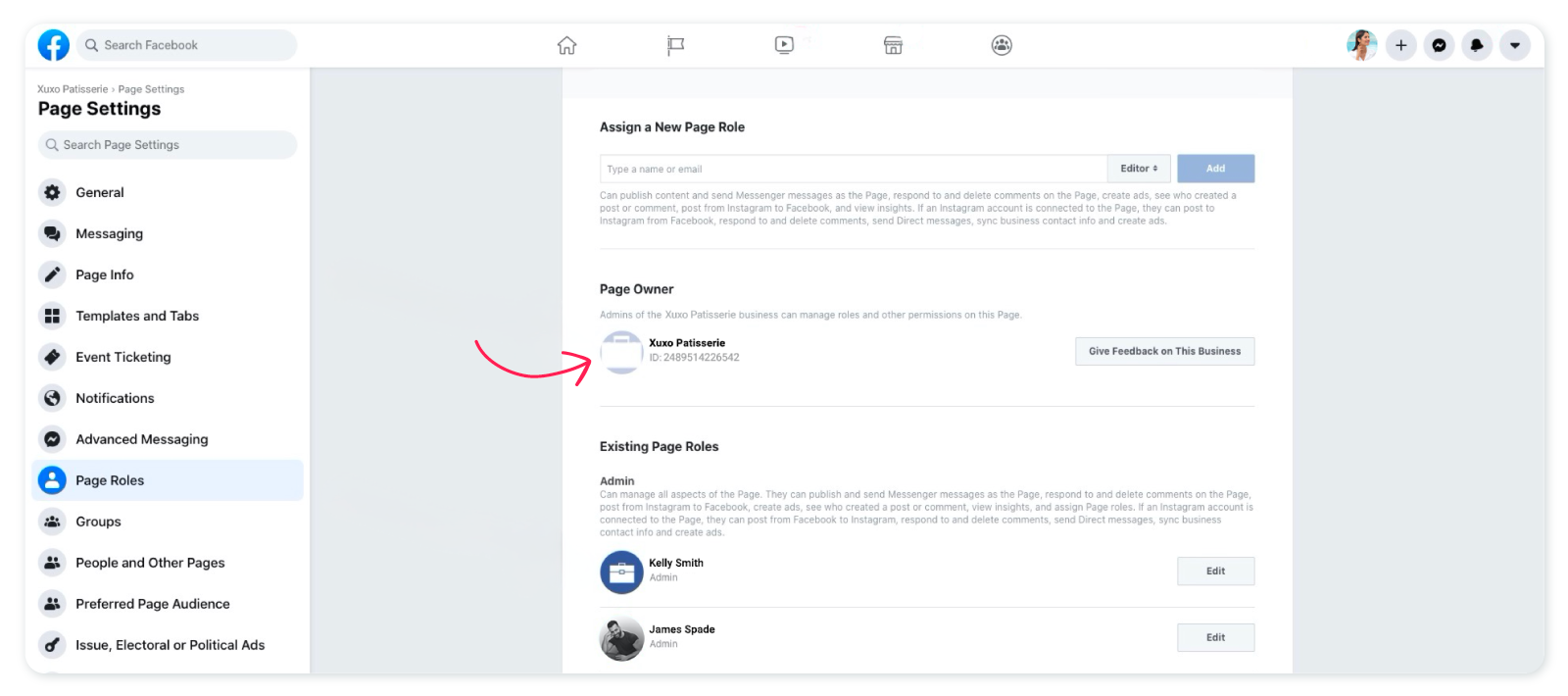
If you don’t see anything listed under "Page Owner," it means your Facebook Page isn't connected to Meta Business Suite. In that case, skip the next section and hop down to the Page role guidance within Facebook Page settings.
Explore page role guidance within Meta Business Suite
Now that you've confirmed that your Page is integrated with Meta Business Suite, let's verify if you have been correctly established as an admin within that Business Suite account. If your Page is not connected to Meta Business Suite, you can proceed directly to the Page Role Guidance within Facebook Page Settings.
You’ll first head to your Meta Business Suite Settings (or click this link).
If you land on a page with several Business Suite accounts, begin by selecting the account associated with the Facebook Page you intend to access. If you don’t see the right account, it's possible you're not set up as an admin in that Business Suite. You might need help from a teammate.
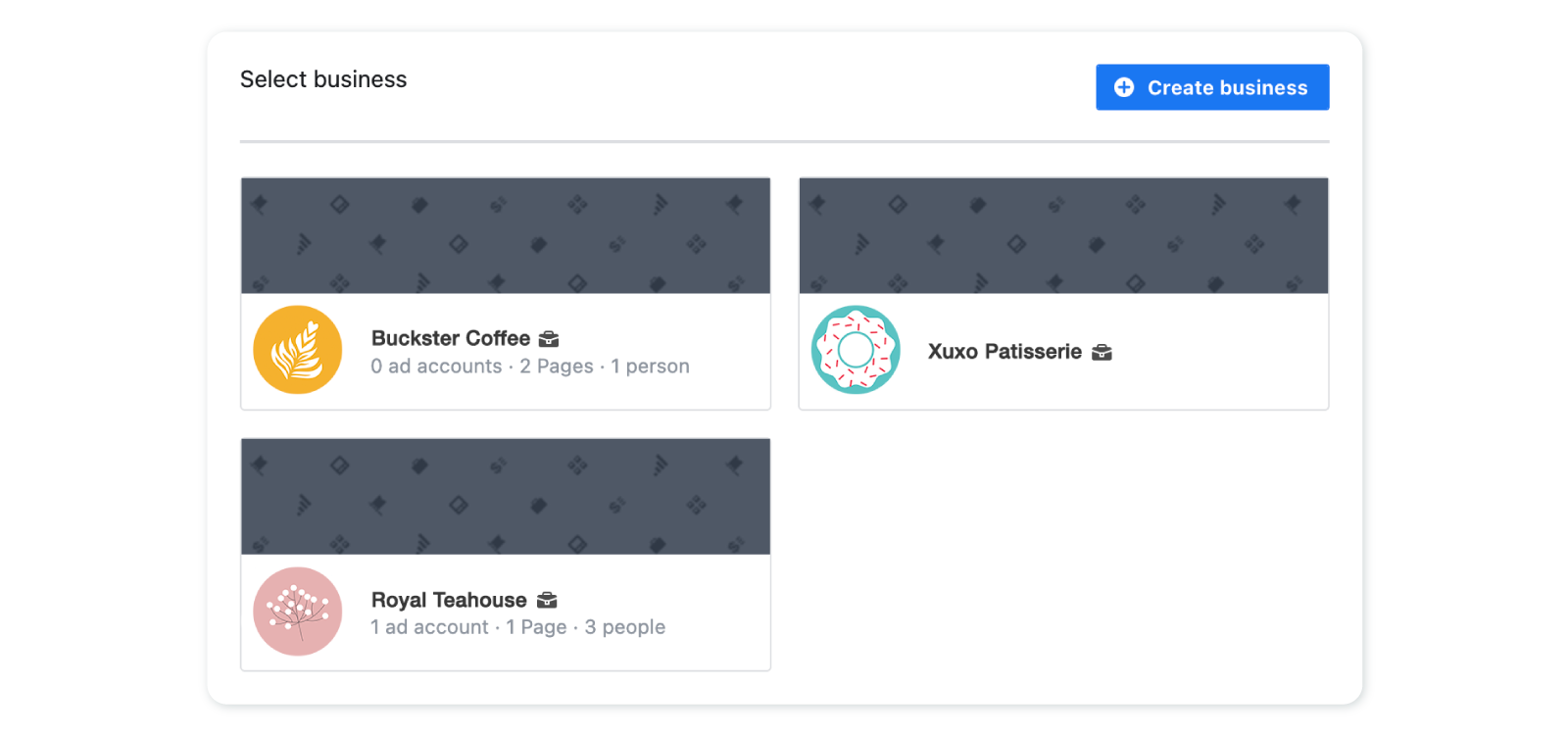
Click Pages under the "Accounts" section and ensure that the name of the person you'd like to give admin access to is added to this list. And to connect your Facebook, you must have the necessary permissions to access and manage the account. The specific permissions required may vary depending on your use case.
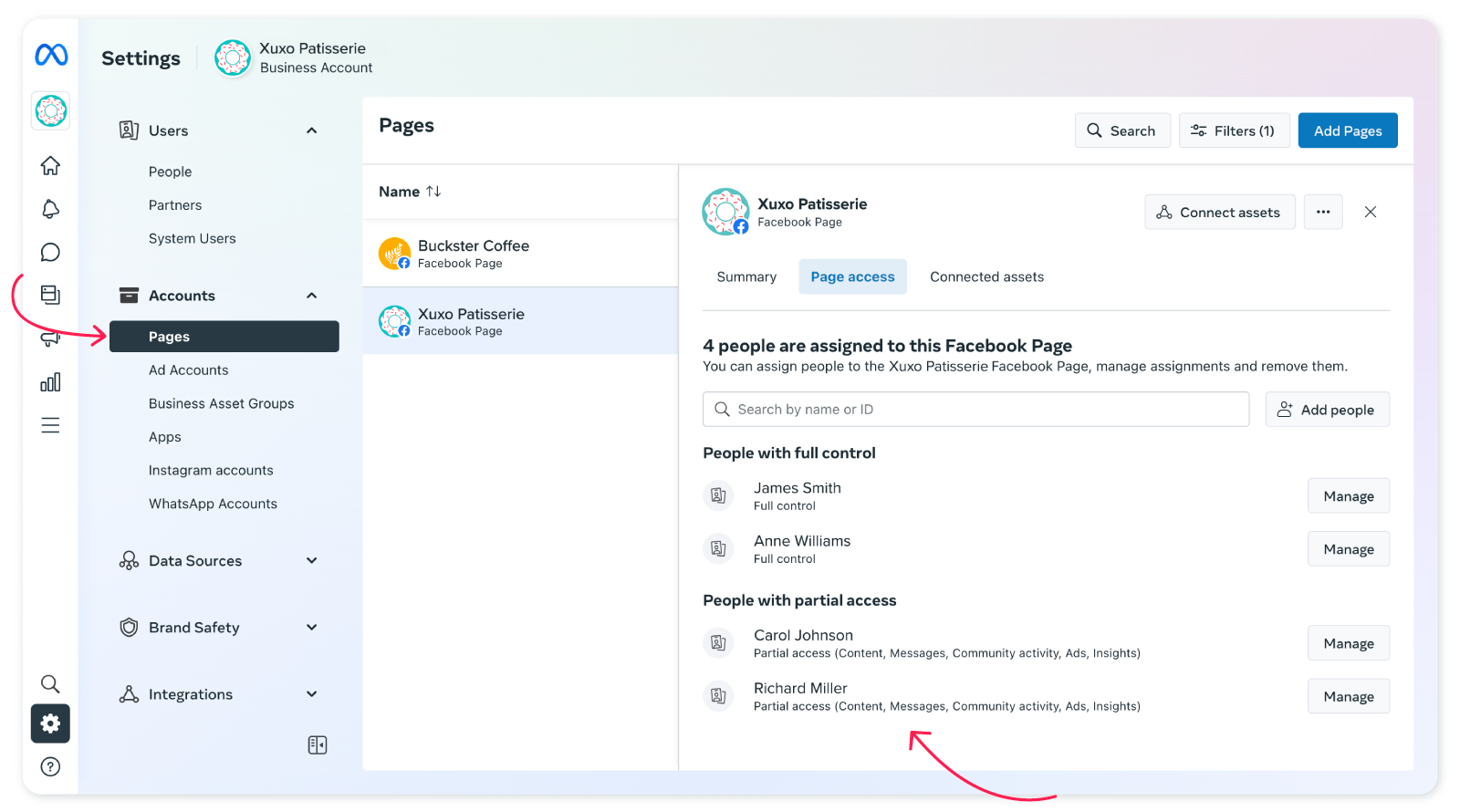
Here are three common scenarios for connecting Facebook pages and the permissions that may be required for each:
In the simplest case: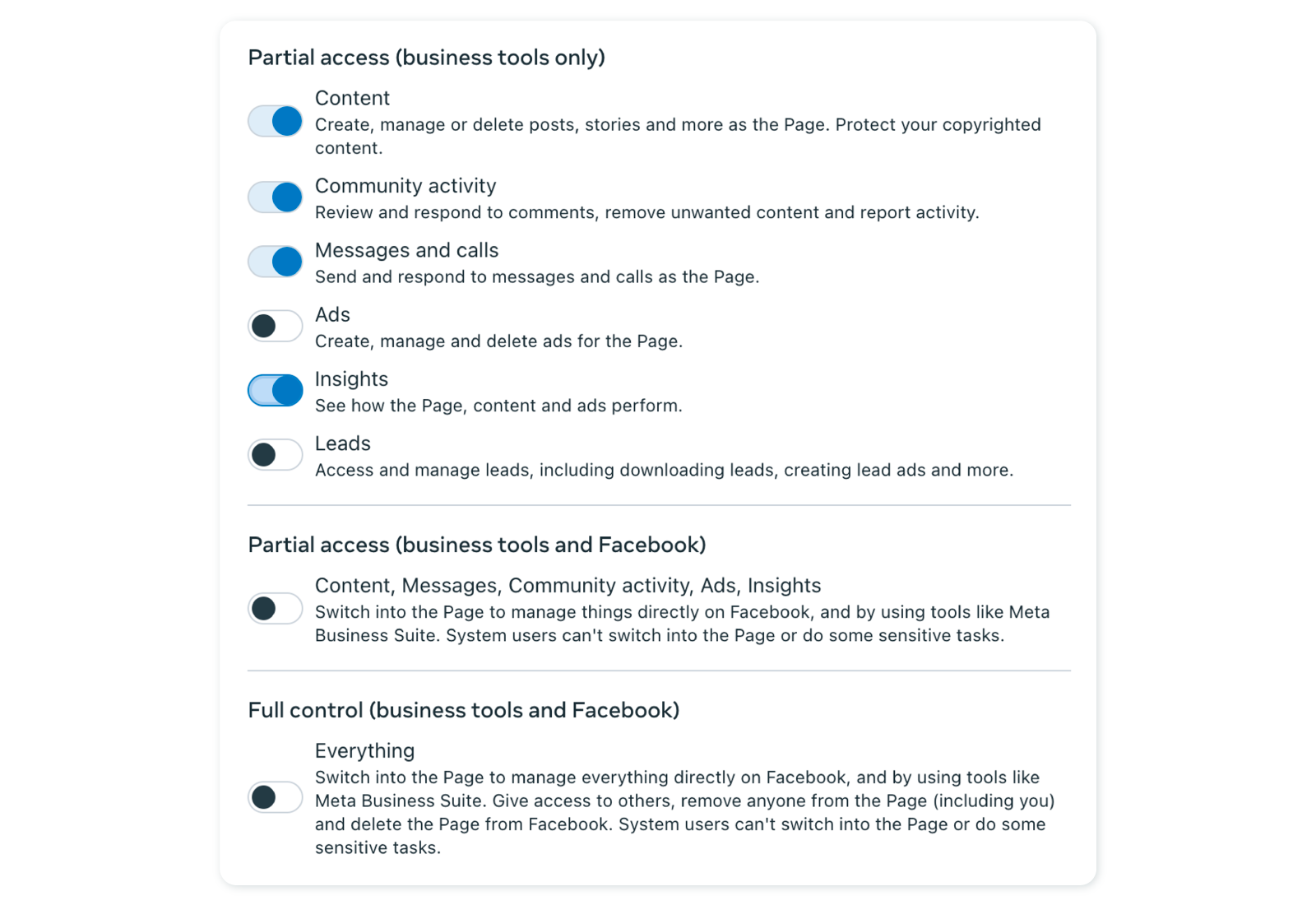
Another effective scenario is: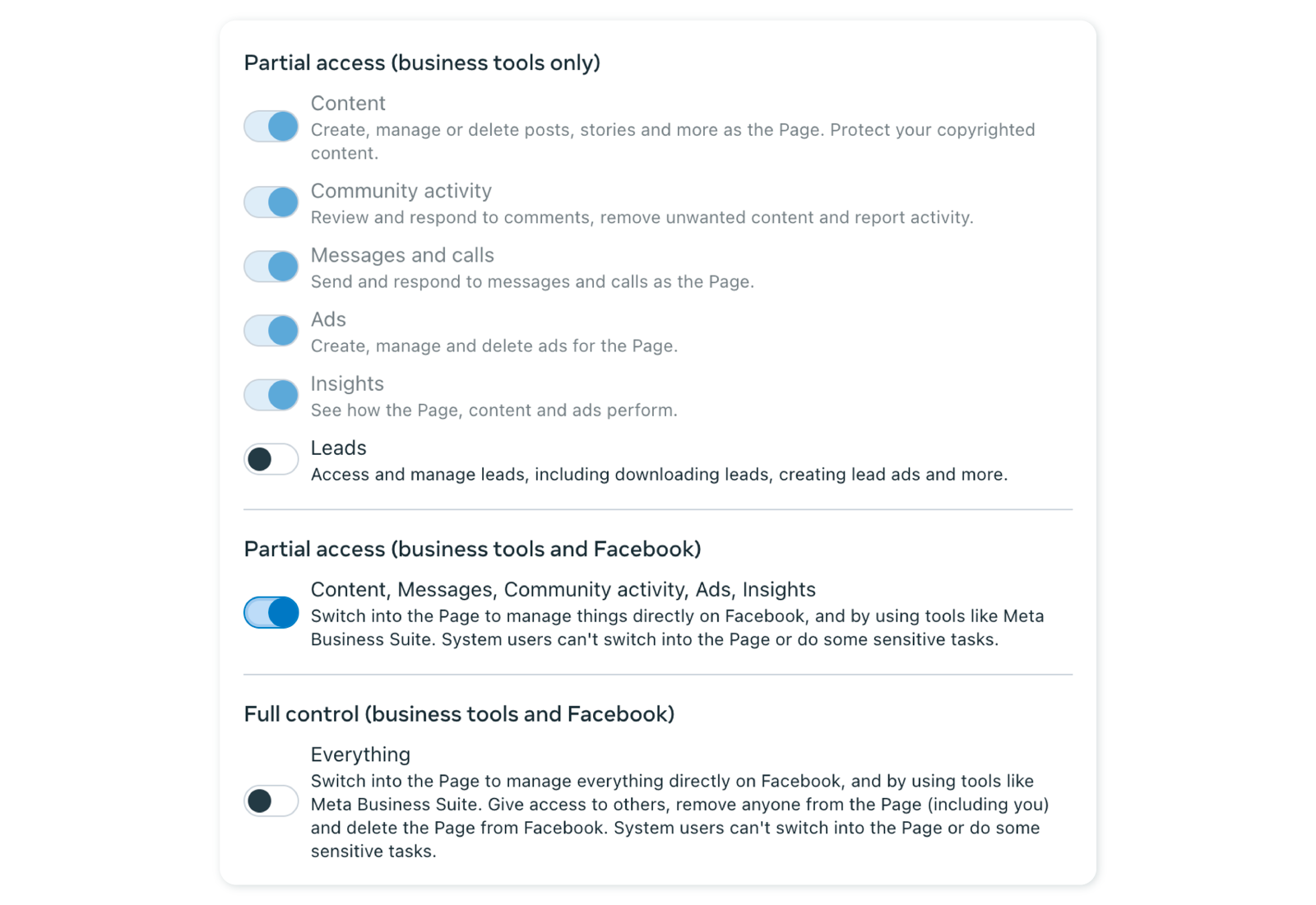
Another functional option is: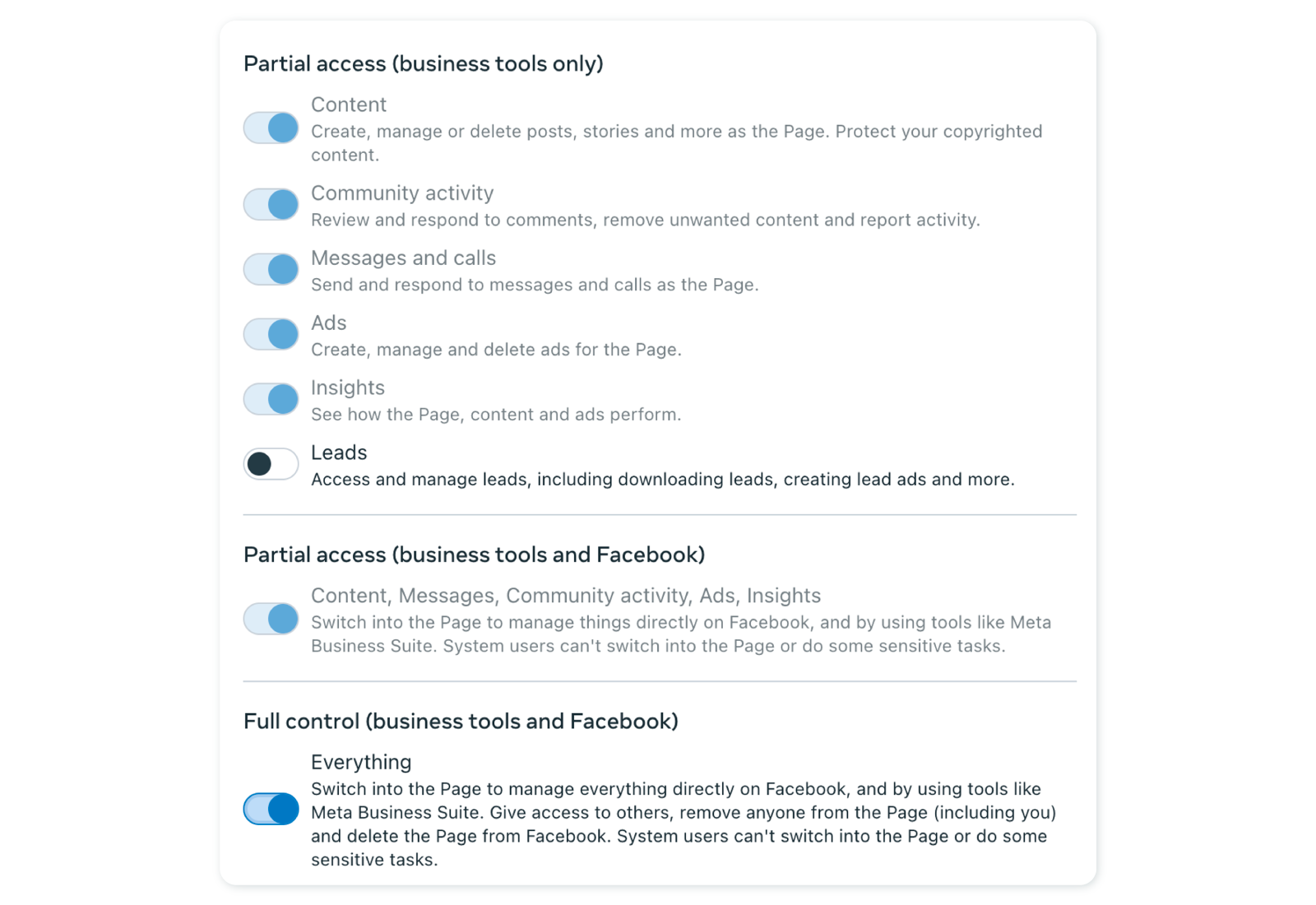
Your team member has successfully connected in one of the required places within the Meta Business Suite. You can proceed by skipping the following steps.
Explore Page role guidance within Facebook Page settings
If your Facebook Page isn't connected to Meta Business Suite, you can establish your admin access directly from the settings of your Facebook Page.
In the course of this procedure, ensure that your personal Facebook profile holds an admin role for the Facebook Page you wish to connect or reconnect or for the Instagram channel linked to it. The steps below will guide you through this verification process.
In Facebook, open your Page and be sure you’re logged in as your Page so you can manage it.
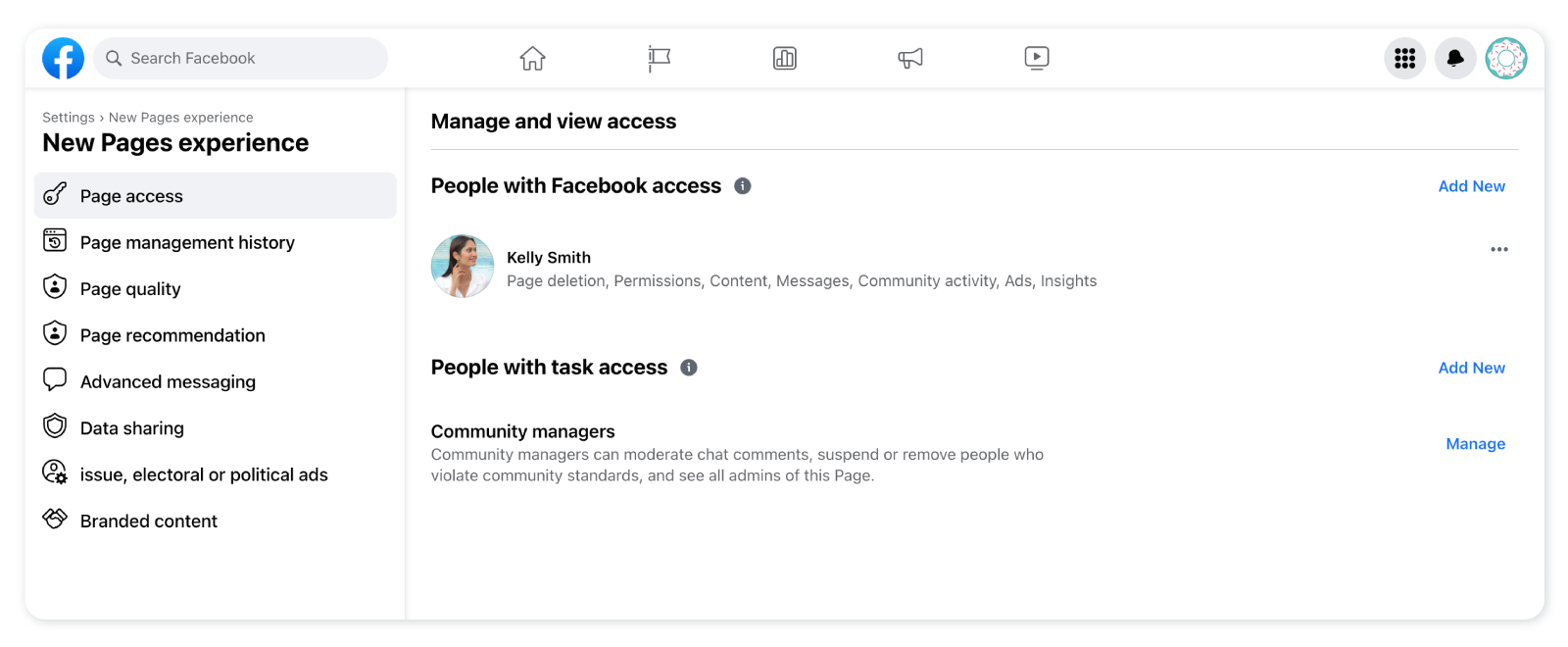
Click Professional Dashboard in the menu on the left.
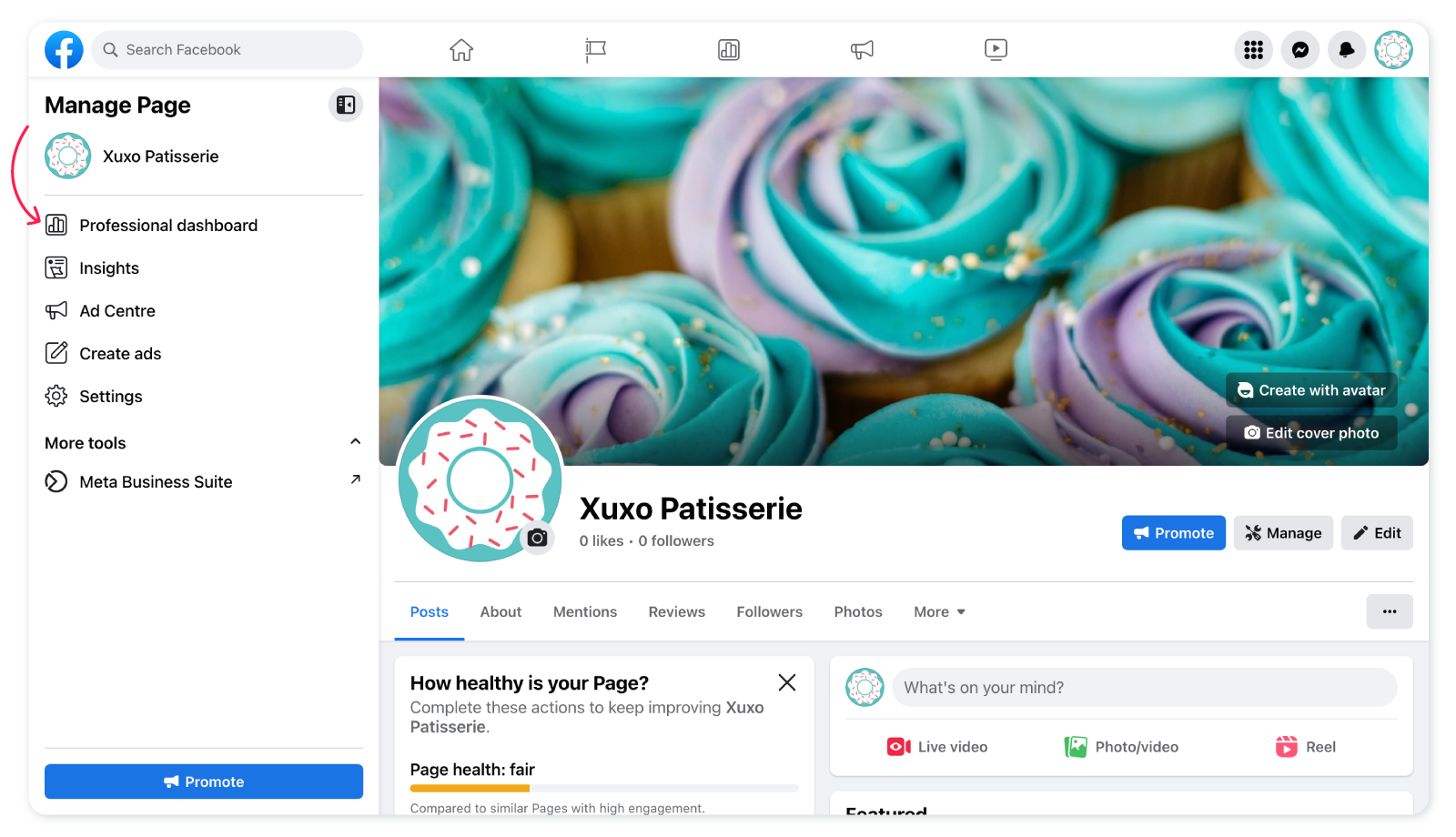
Click on “Page Access” in the menu on the left.
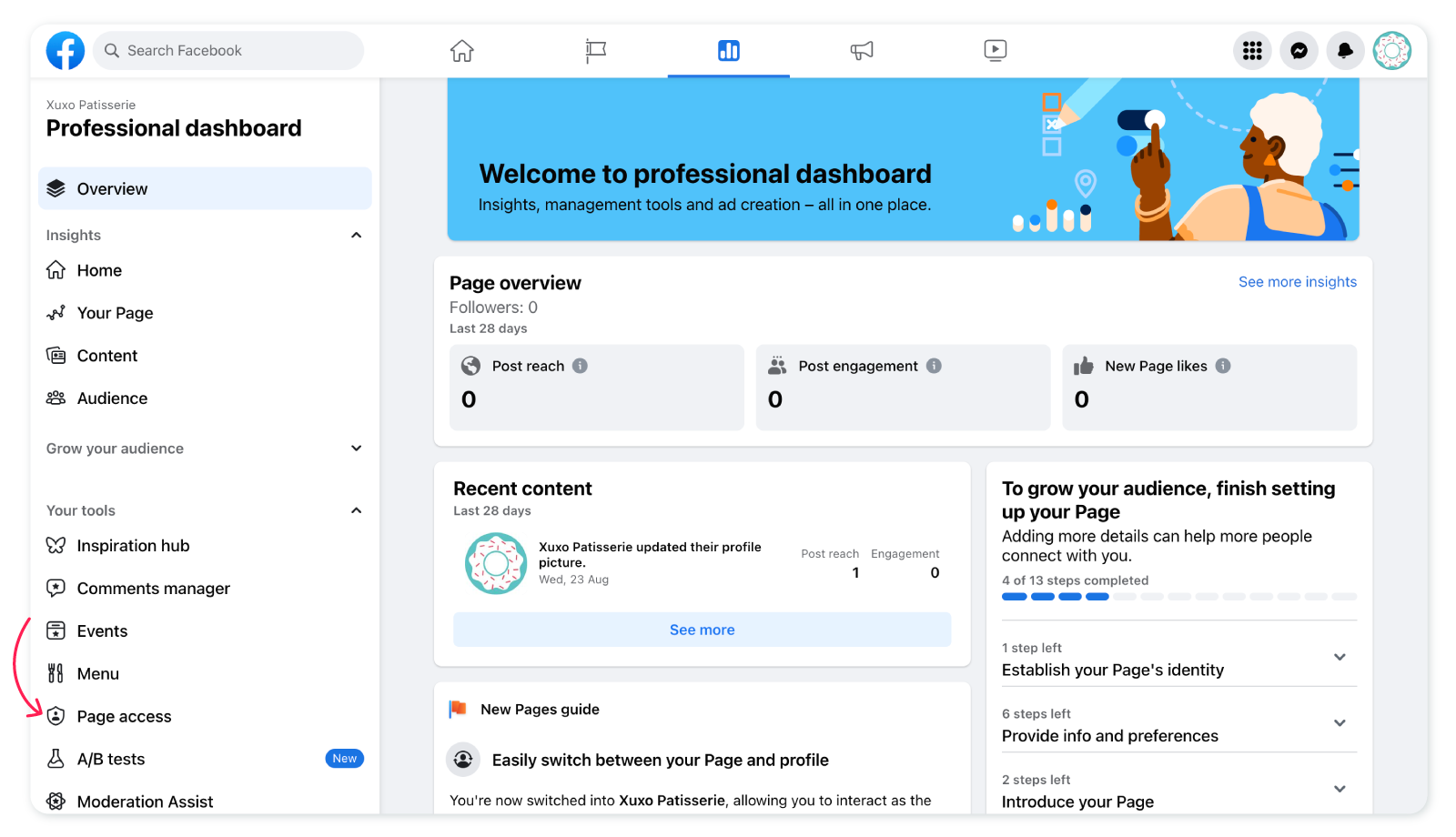
On the appearing screen, click your name, and a popup will appear. It should say, "This person has full control."
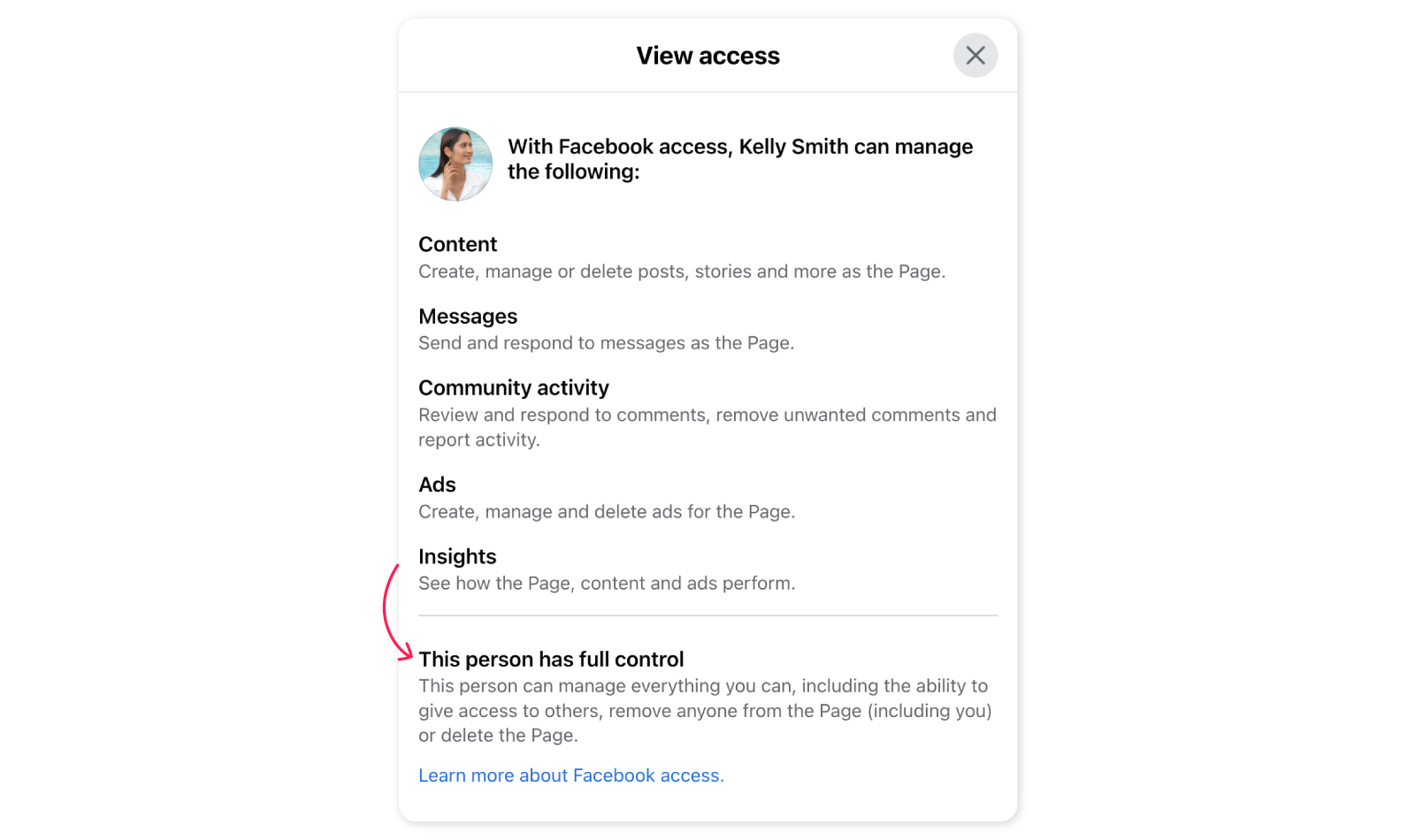
If it doesn't, you'll need someone on your team with full control to adjust your permissions.
Troubleshoot Checklist for Classic Pages Experience
Understand if your Facebook Page is part of the Meta Business Suite
Once you've figured out which Pages Experience your Page falls under, you'll also need to understand if it's connected to Meta Business Suite. This will help you find where to manage the roles for your Page.
Head over to Facebook and navigate to the list of Pages you can access.
Click on the Page you want to view.
Once you're on your Page, click "Settings" in the left-hand sidebar.
Click “Page roles” on the left-hand side.
If you see anything listed under "Page Owner," your Page is connected with Meta Business Suite.
If you don’t see anything listed under "Page Owner," it means your Facebook Page isn't connected to Meta Business Suite. In that case, skip the next section and hop down to the Page role guidance within Facebook Page settings.
Explore page role guidance within Meta Business Suite
Now that you've confirmed that your Page is integrated with Meta Business Suite, let's verify if you have been correctly established as an admin within that Business Suite account. If your Page is not connected to Meta Business Suite, you can proceed directly to the Page Role Guidance within Facebook Page Settings.
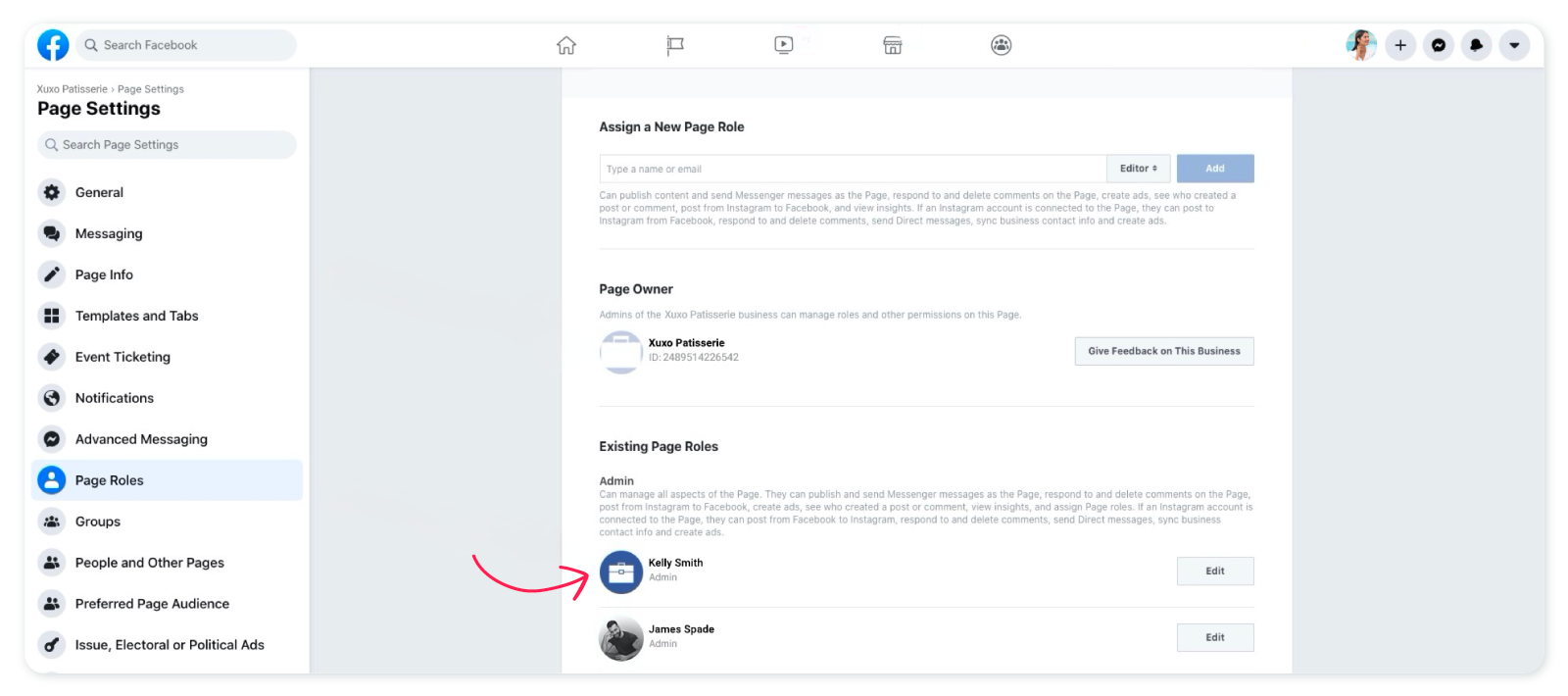
Referring back to the screenshot, the individuals listed as admins for your Page under the section labeled ”Existing Page Roles.” If your profile picture has been replaced with a briefcase icon (as indicated by the arrow below), it's probable that you possess the necessary permissions and should be capable of connecting or reconnecting your Facebook Page to Sociality.io.
Explore Page role guidance within Facebook Page settings
If your Facebook Page isn't connected to Meta Business Suite, you can establish your admin access directly from the settings of your Facebook Page.
In the course of this procedure, ensure that your personal Facebook profile holds an admin role for the Facebook Page you wish to connect or reconnect or for the Instagram channel linked to it. The steps below will guide you through this verification process.
Head over to Facebook and navigate to the list of Pages you have access to (or click this link). Click on the Page you want to view.
Once you're on your Page, click Settings in the left-hand sidebar.
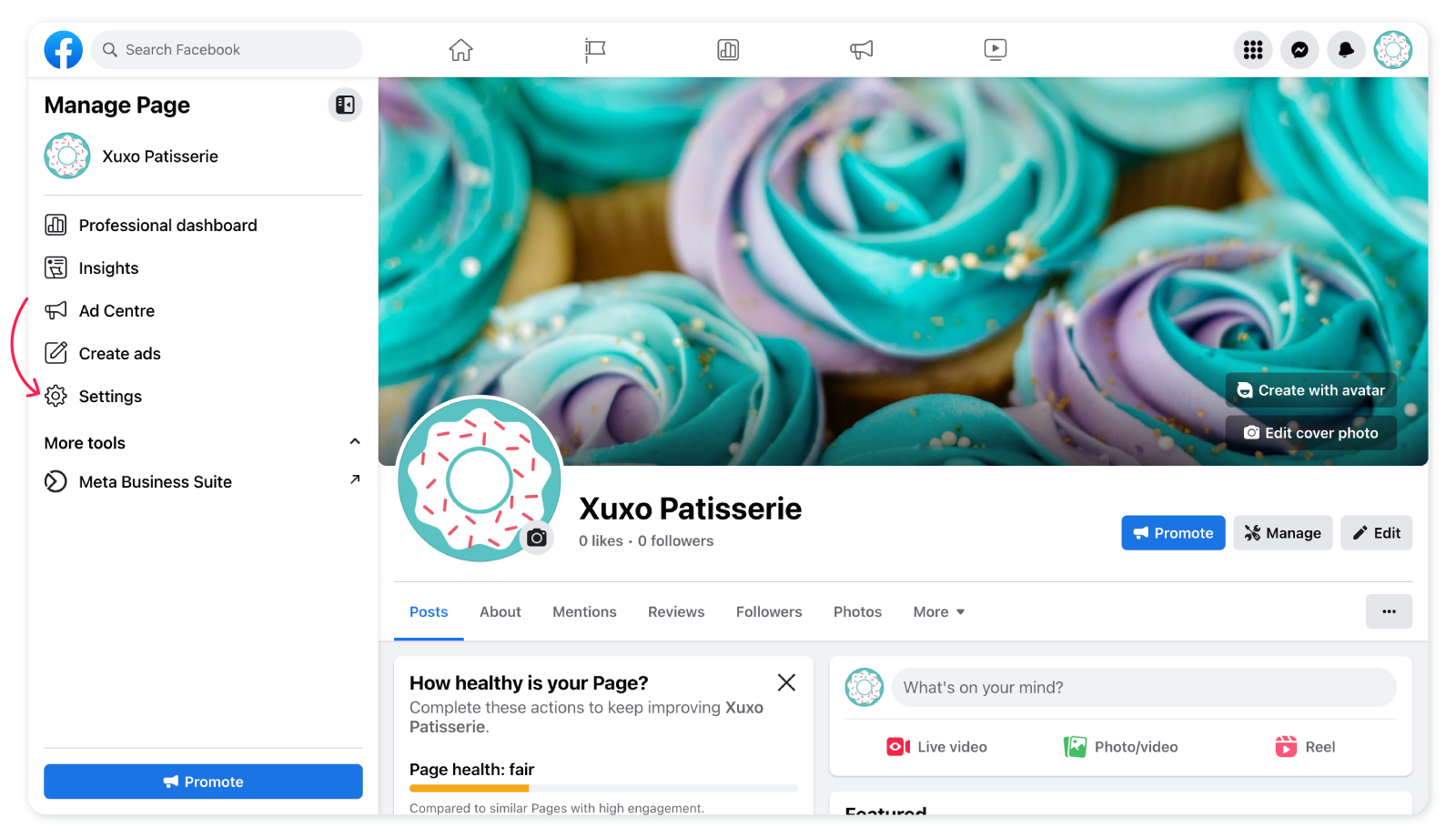
Click Page roles on the left-hand side.
You should confirm that your own personal profile is listed as an admin in the "Existing Page roles" section, as illustrated below.
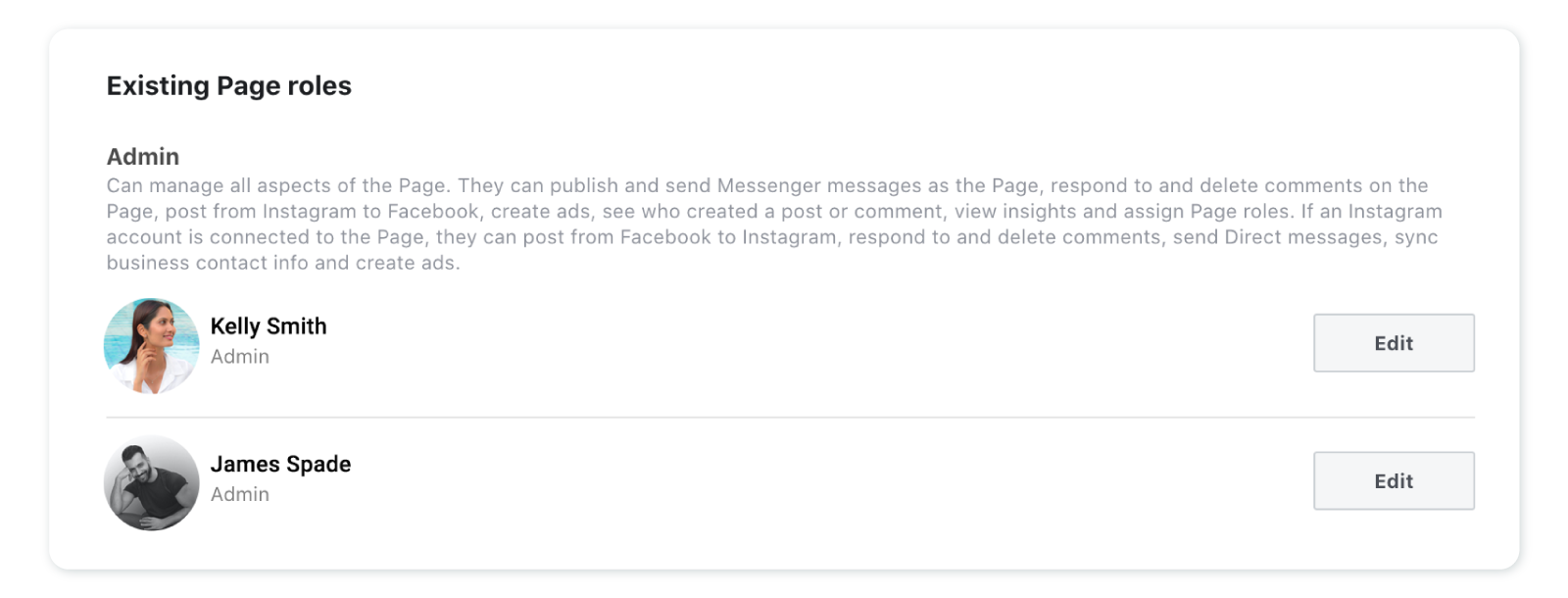
If you find any other role listed (Editor, Analyst, Advertiser, etc.), you won't be able to authorize the connection. In this case, you'll need to contact the admin of the Page and ask them to grant you the admin role. Alternatively, you can ask them to connect the Facebook Page or Instagram channel to Sociality.io.
2) Checking your Facebook connection permissions
If you have the appropriate Page role but it's not appearing, it indicates that Sociality.io lacks the necessary permissions from Facebook. To address this, kindly proceed with the steps below and then try connecting your Page again.
Log into the Facebook personal profile that is an admin on the Facebook Page.
Click on the small drop-down arrow at the top right of your screen and then click ”Settings & privacy > Settings.”
Scroll down and click on "Business integrations" located on the left-hand side. To directly access your Business Integration settings, you can click on this link: Business Integration Settings.
👉 Please note that these settings are found on your Facebook profile and not within the Facebook Page settings, so you must use Facebook as your profile to access them.
Find Sociality.io in the list of integrations and click ”View and edit.”
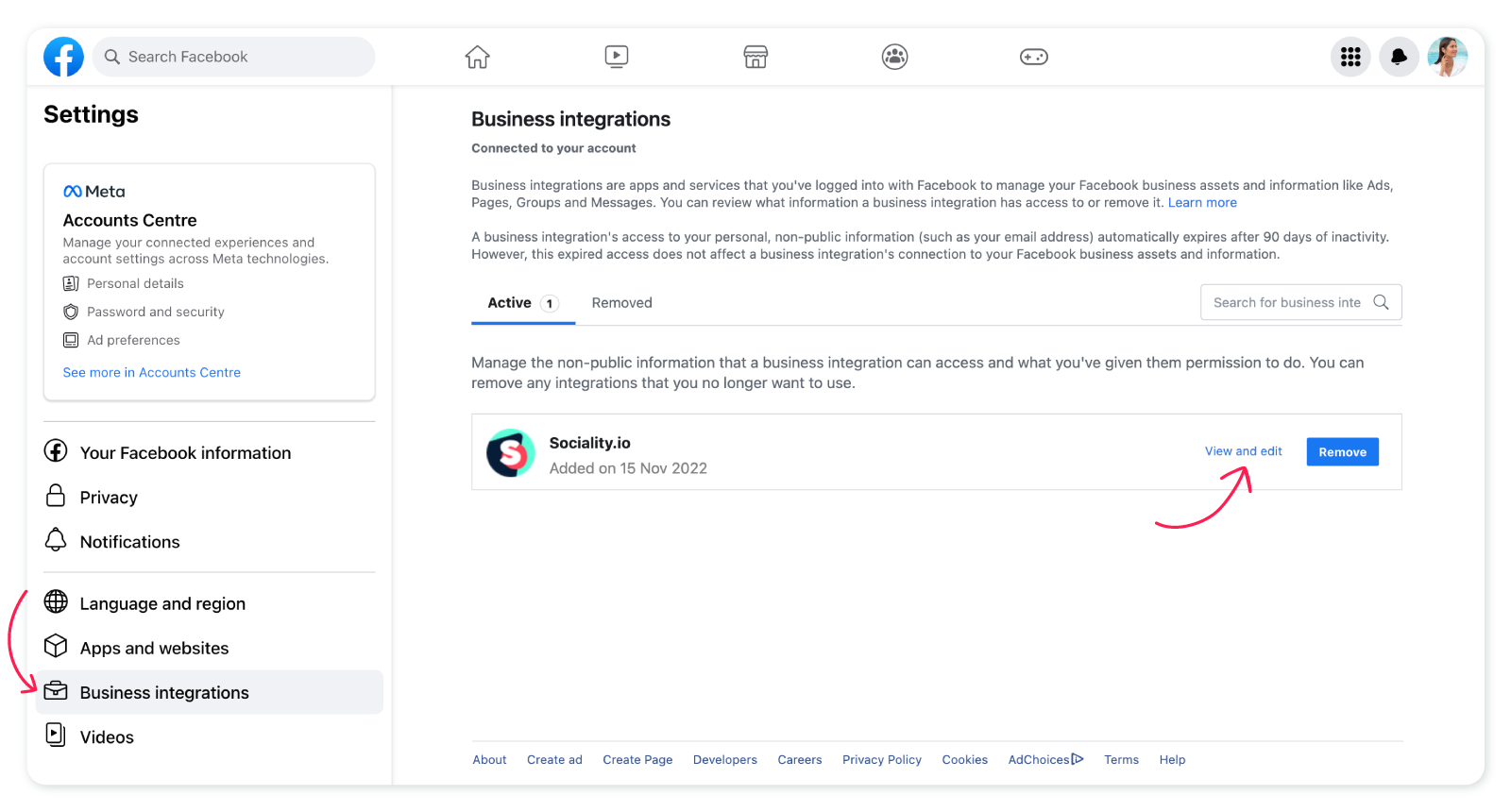
In the pop up window, we need to ensure that all Facebook Pages are checked in all sections as shown below. Each section may need to be expanded by clicking See all Pages.
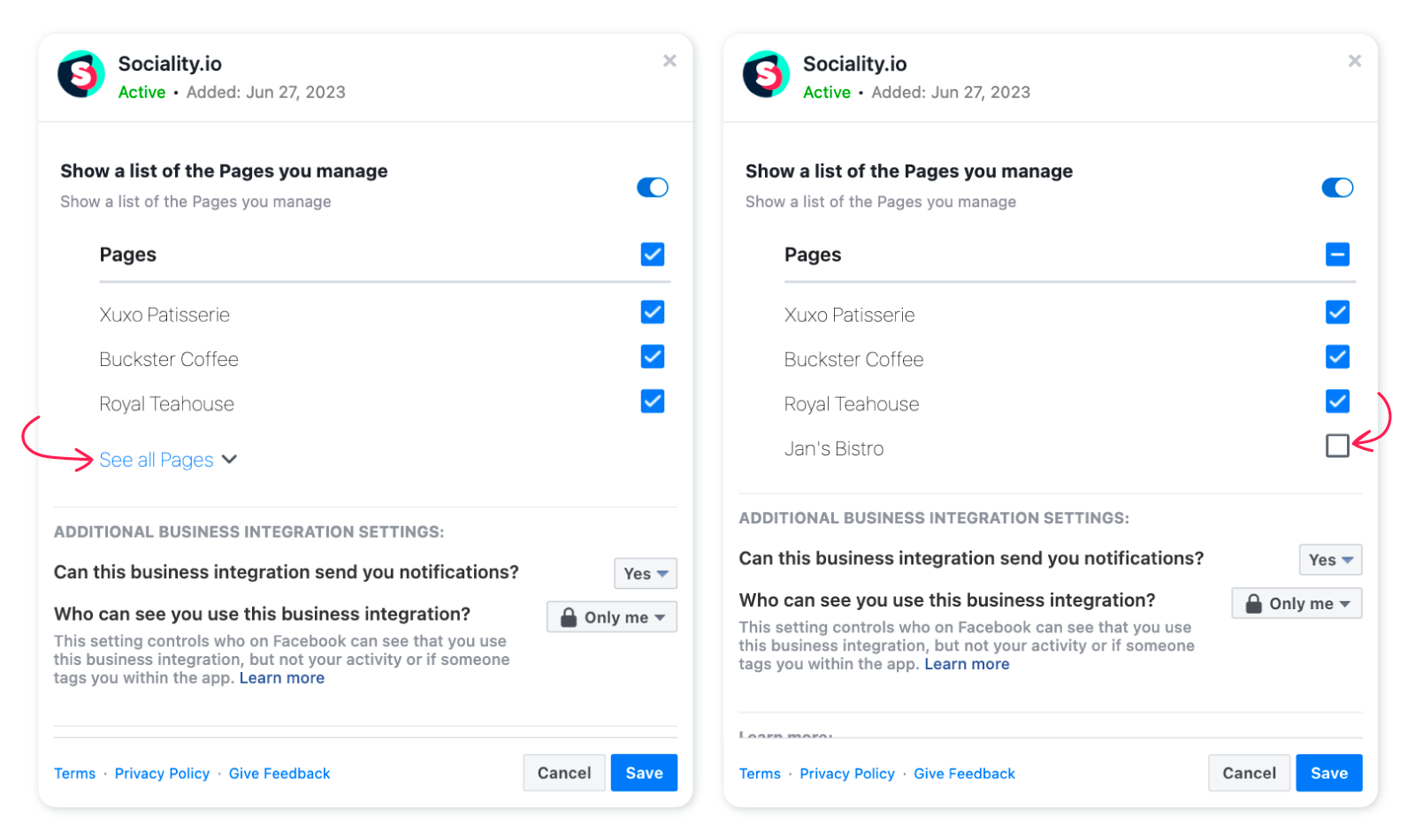
After selecting all Pages, click ”Save.”
Once you've completed these steps, proceed to connect or refresh your Facebook or Instagram channel once again.
3) Connect your Facebook Pages to Sociality.io successfully
How to connect your Facebook Pages in a nutshell:
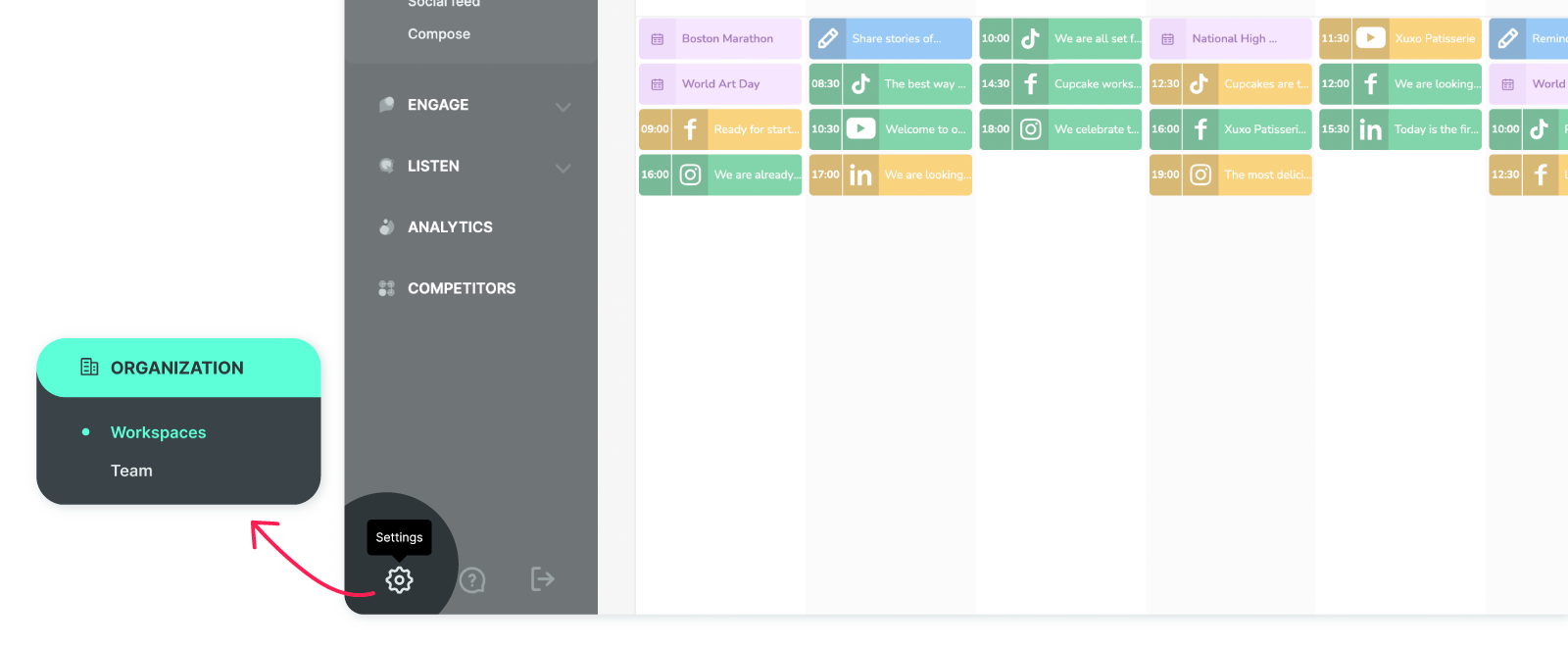
Click 'Settings,' and you’ll land directly in the 'Workspaces' section on the next screen.
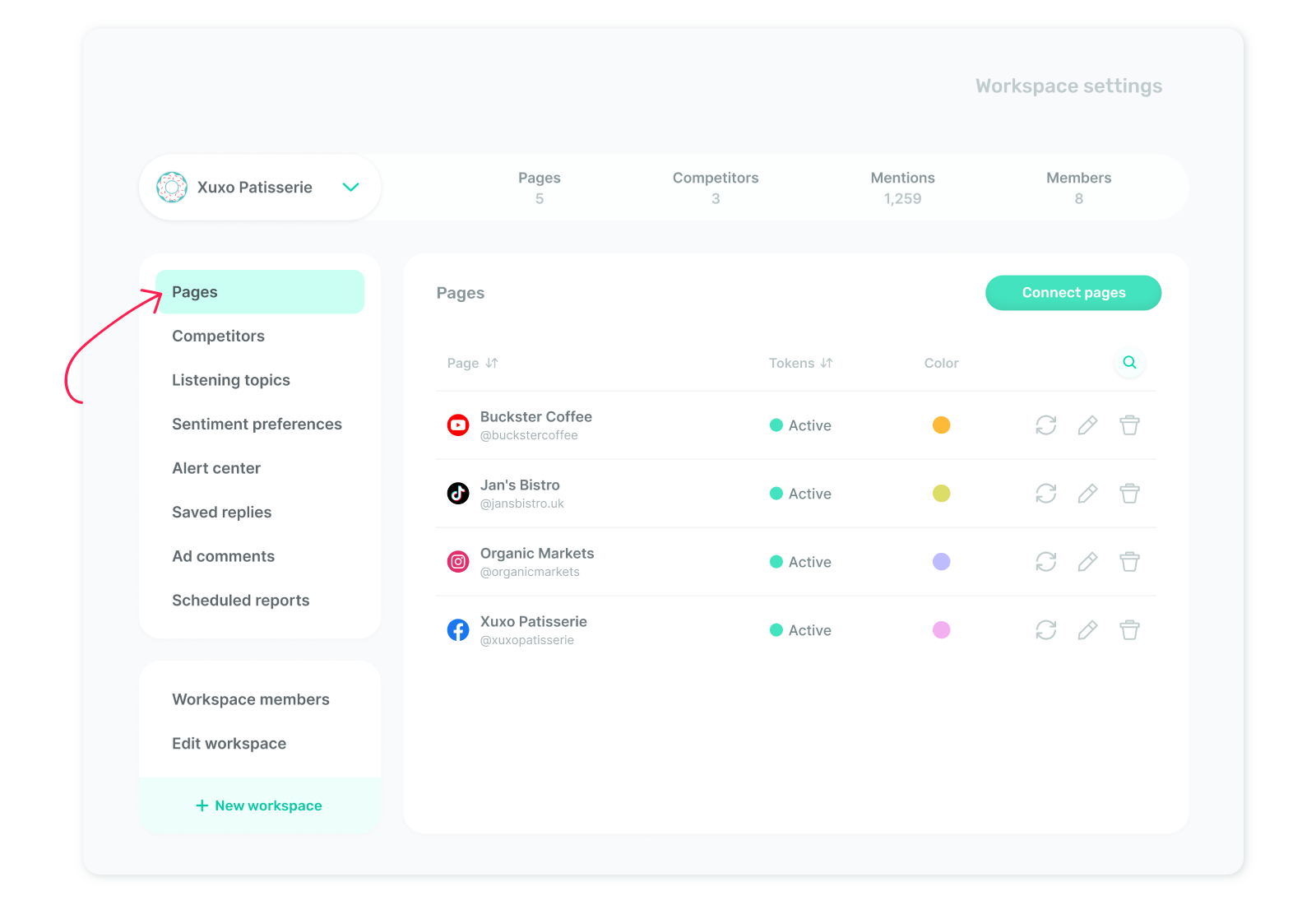
From the left menu, click on 'Pages.'
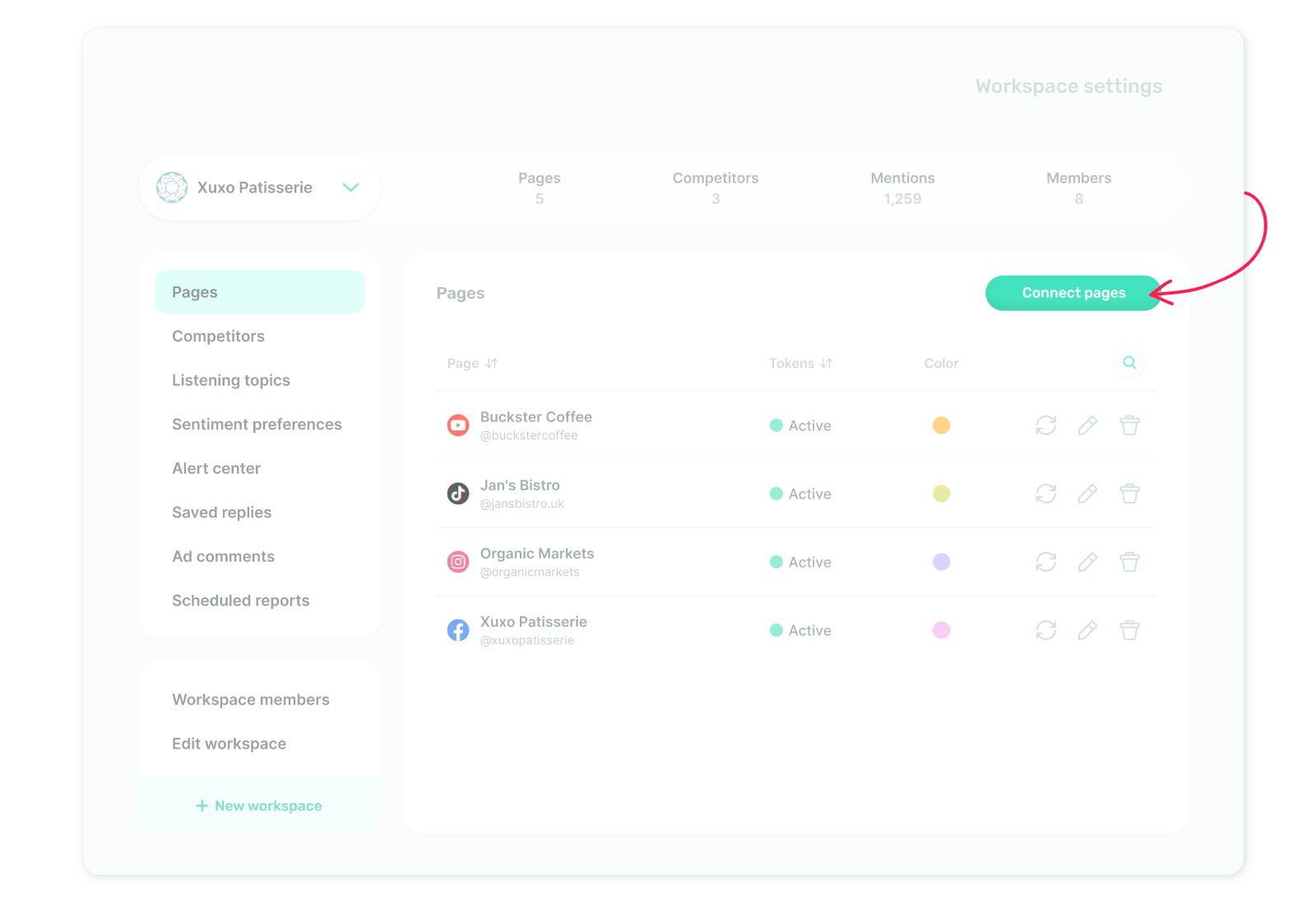
Click on ‘Connect pages’ to continue.
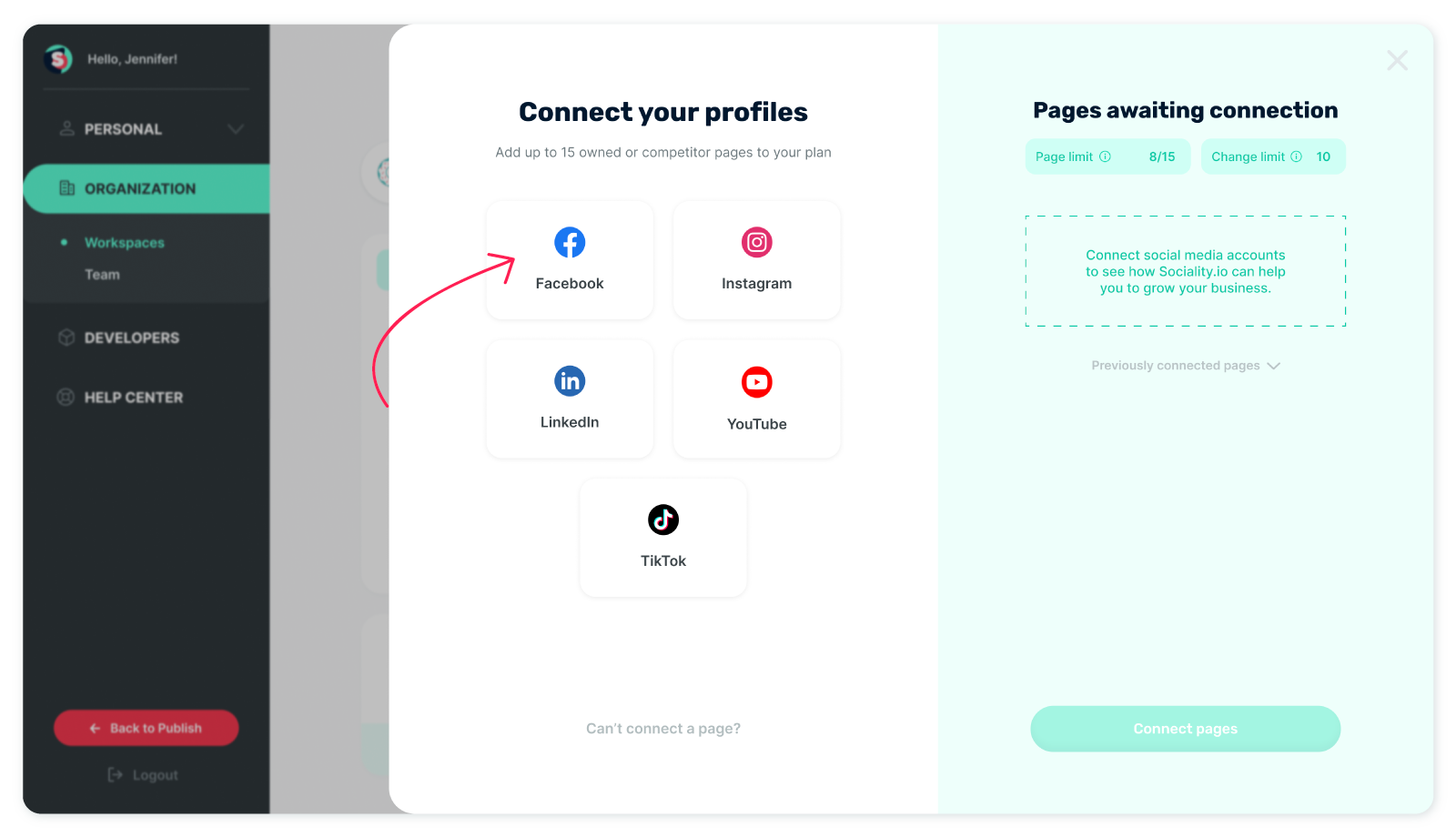
Select ‘Facebook’ when the 'Connect your profiles' screen appears.
Please login into the Facebook account you are willing to connect with Sociality.io — if necessary. Or, authorize Sociality.io app access to your account on the appearing screen.
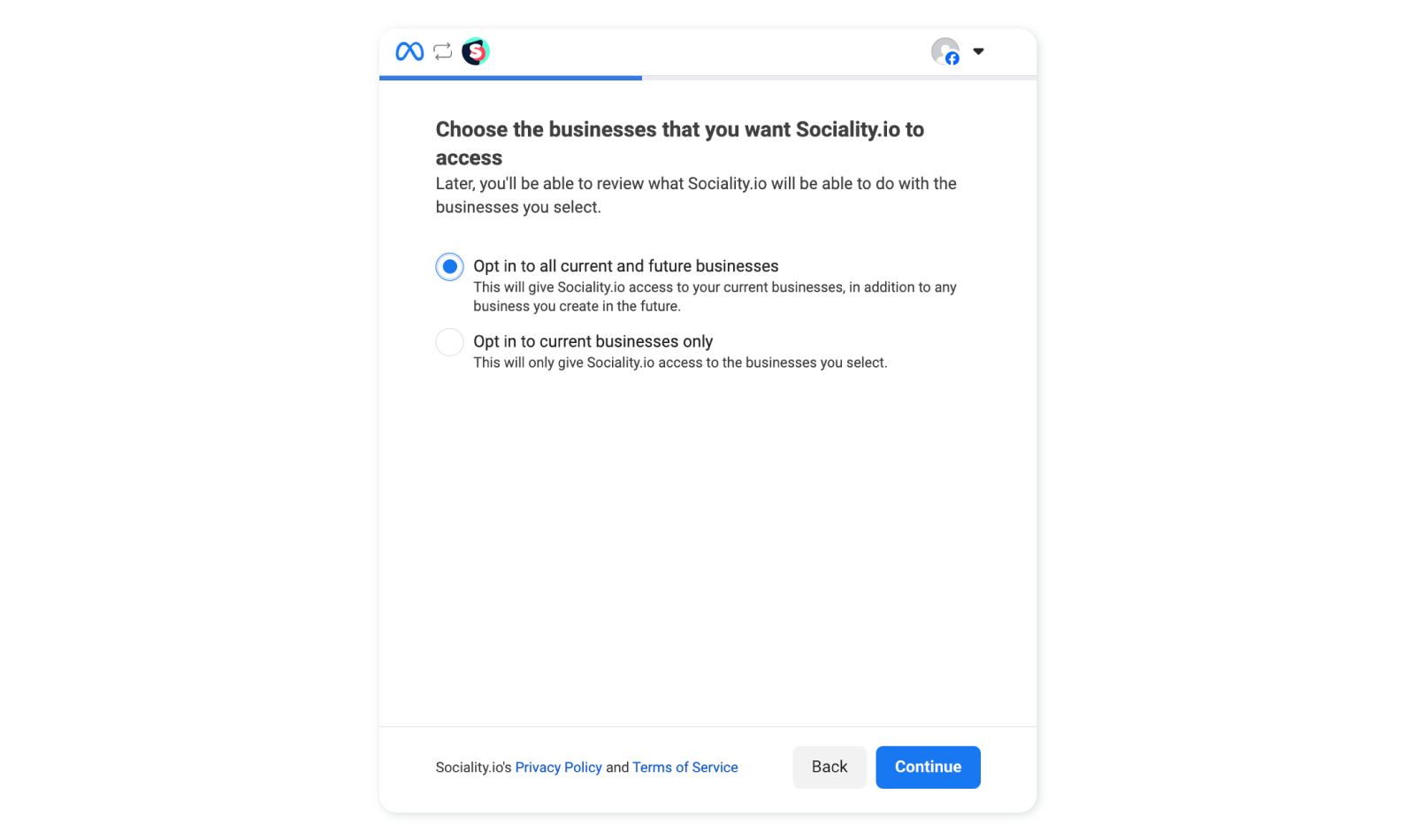
Ensure you select ‘Opt in to all current and future businesses’ on all the screens that appear during the connection process.
We recommend selecting ‘Opt in to all current and future businesses’ during the connection process. This ensures that any new pages added in the future will be automatically connected, which saves you time and effort by avoiding the need for repeated manual connections.
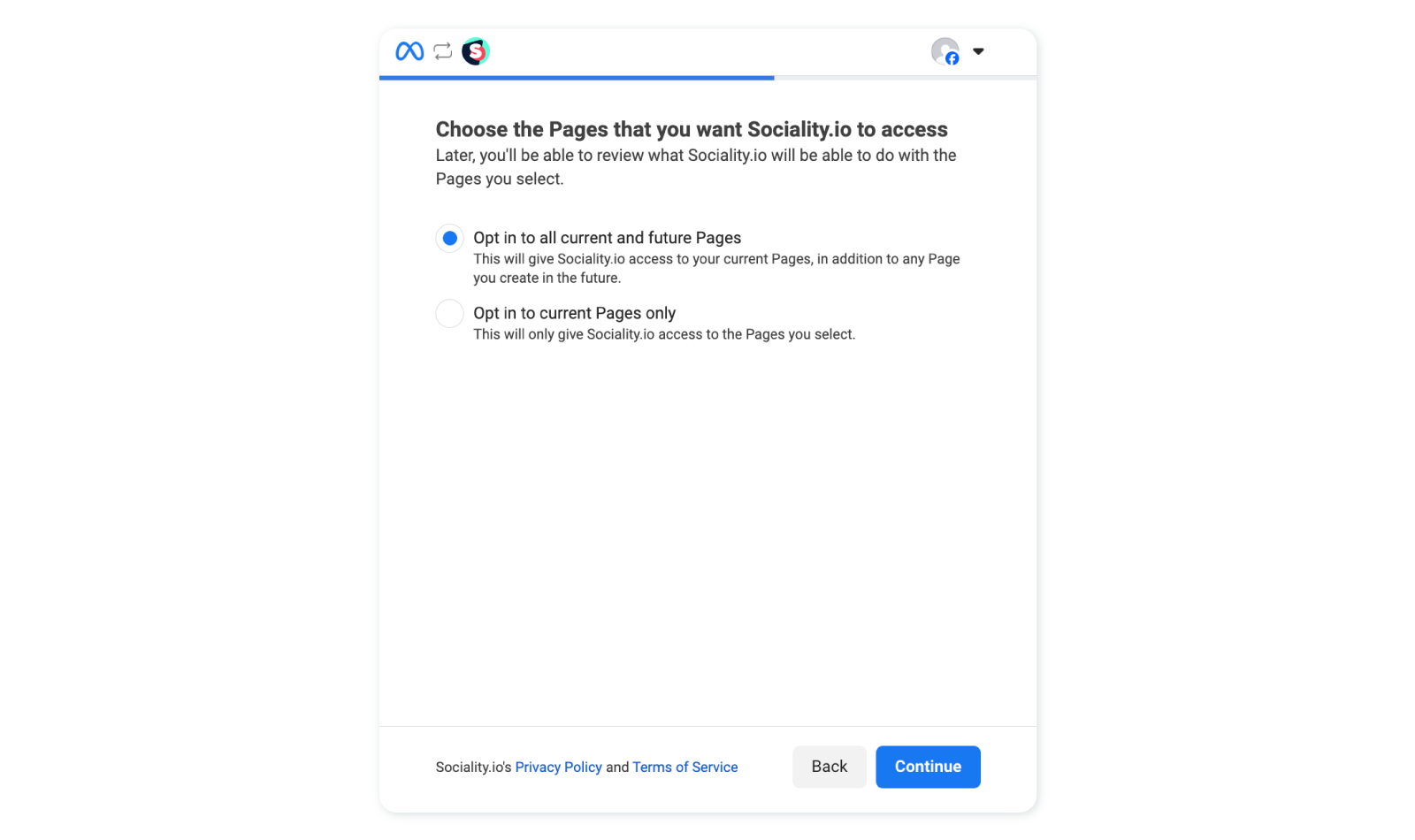
On the next screen, again select the ‘Opt in to all current and future Pages’. Click on ‘Continue’.
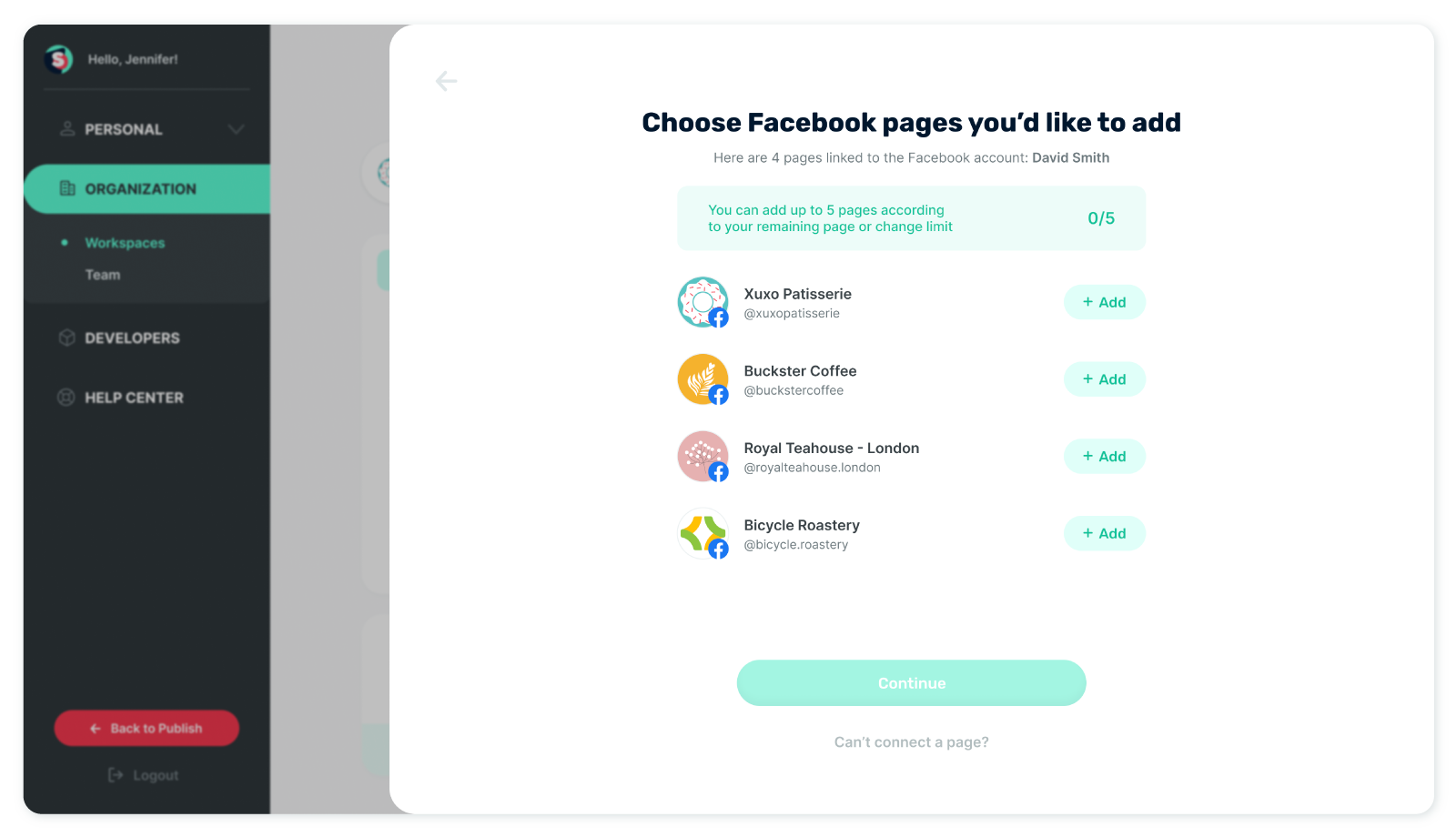
Choose the Facebook pages you want to add to Sociality.io from the displayed screen.
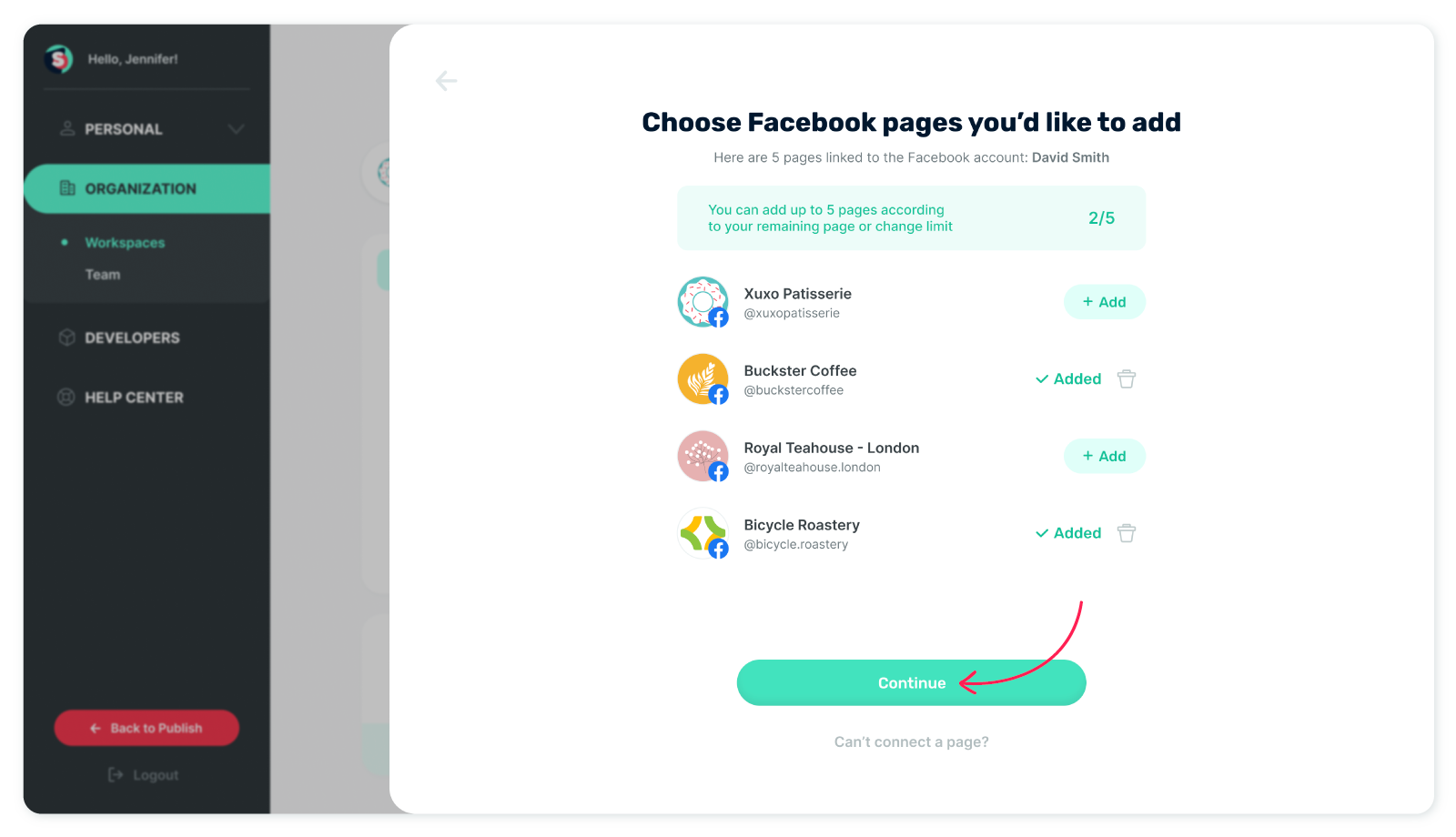
Once you’ve selected the pages to connect, click ‘Continue’.
Next, the pages you’ve added will appear under 'Pages awaiting connection.' Simply click 'Connect pages' button to proceed.
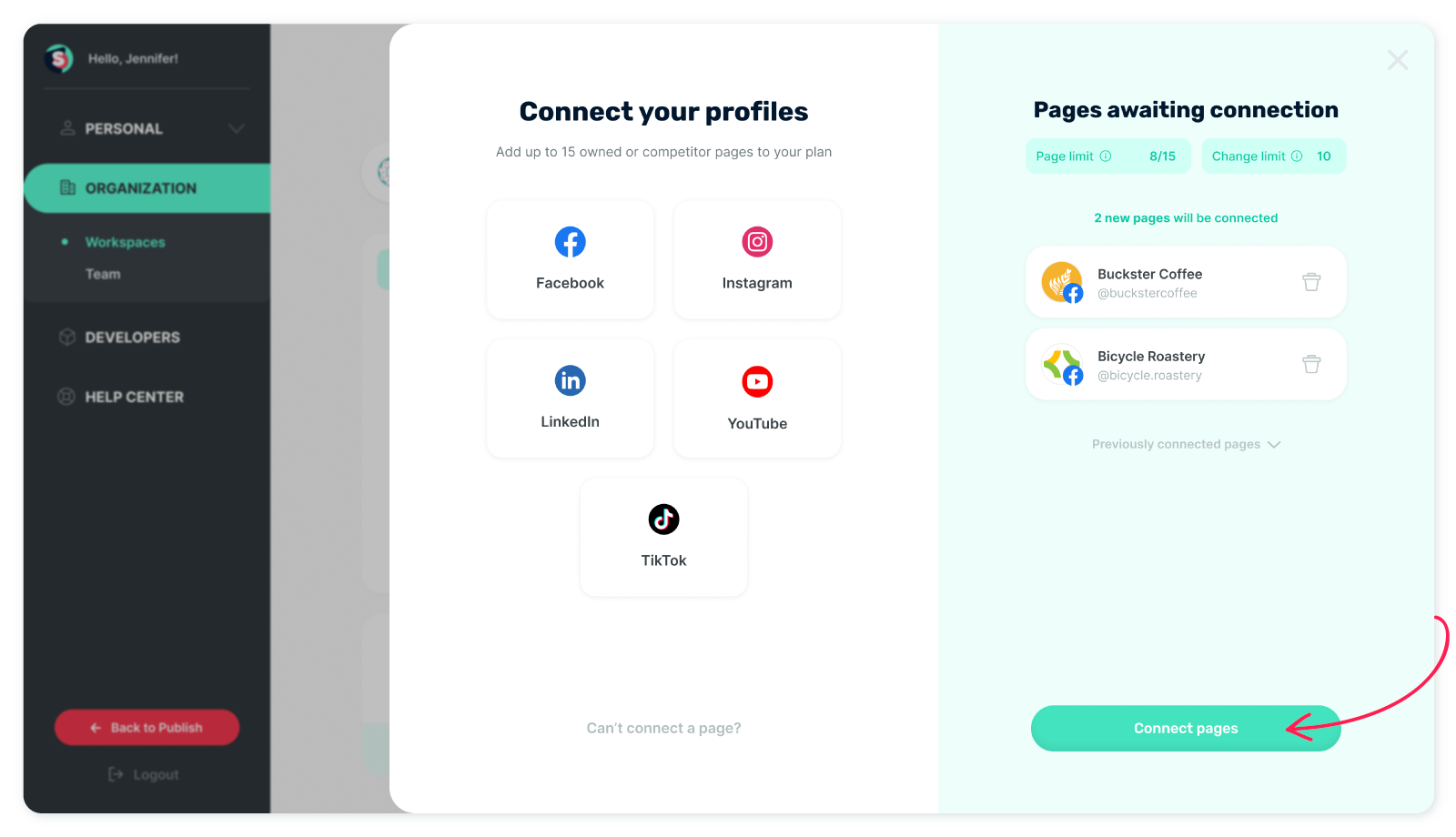
Cheers! 🎉 Your Facebook pages have been added to Sociality.io successfully.
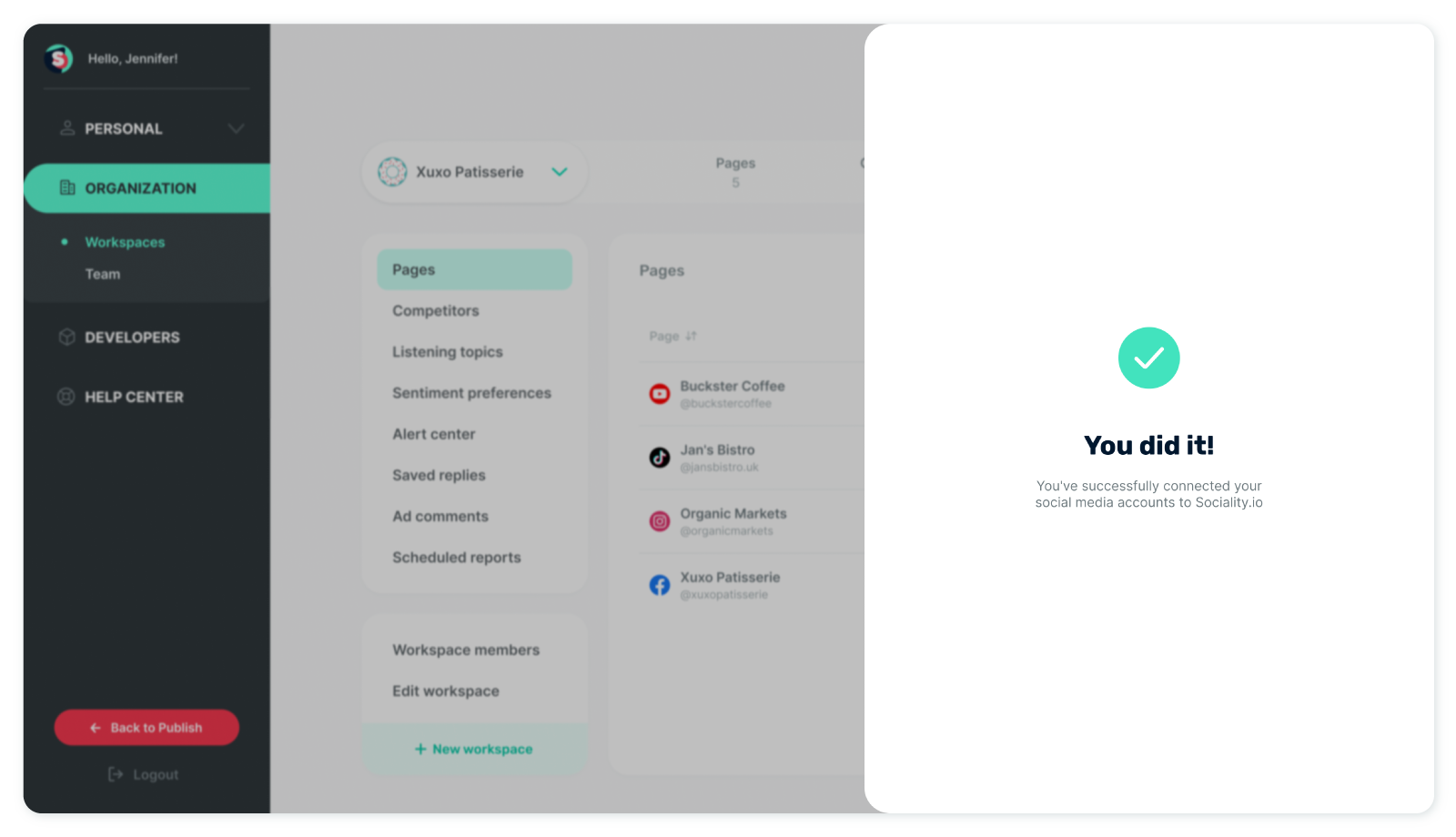
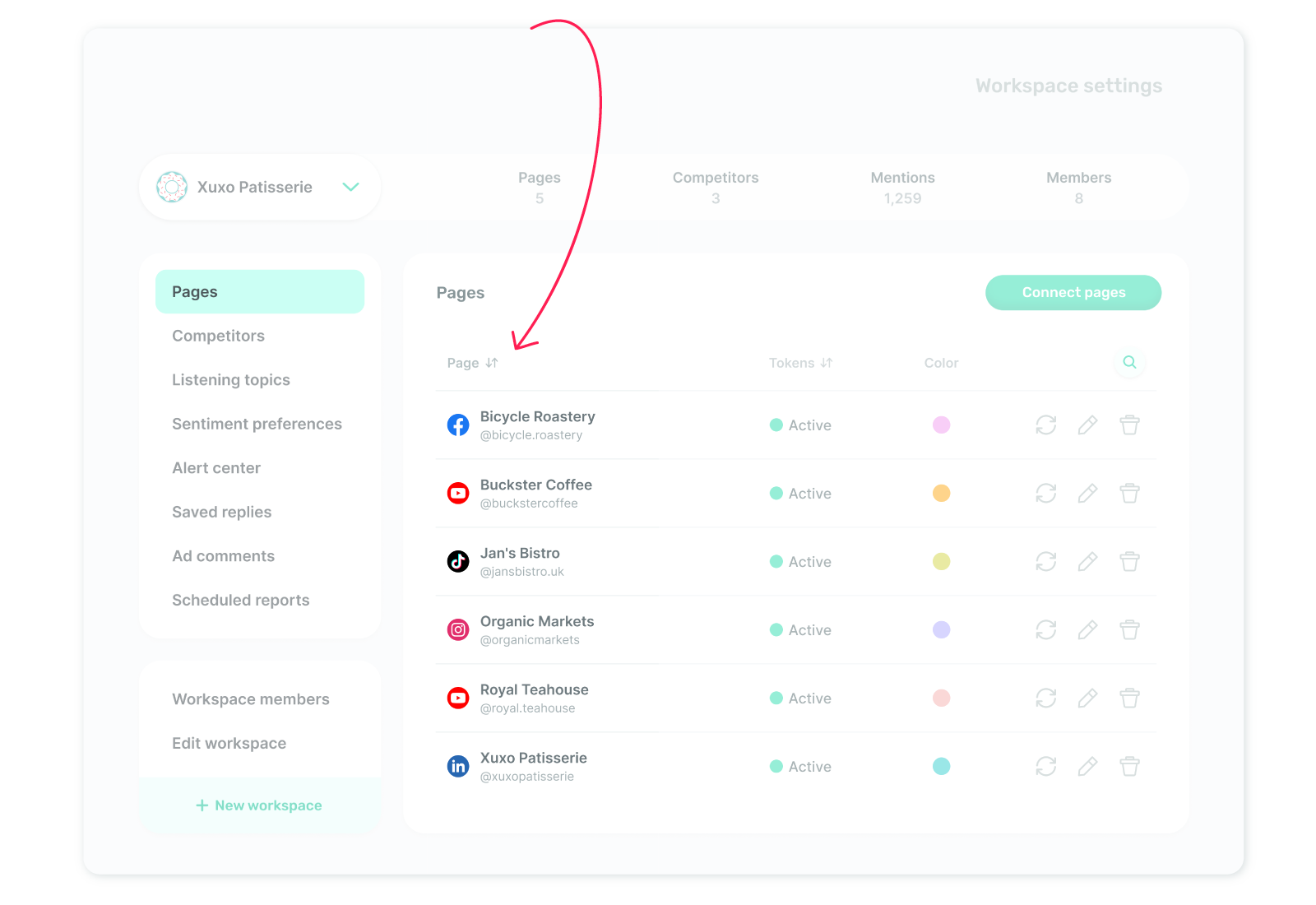
You can see the connected pages under the ‘Pages’ tab.
Platform-specific page connection shortcuts:
Experiencing difficulties with page connections? 👉 Troubleshoot connecting pages to Sociality.io. Here is the solution checklist!