How to connect your pages?

Simplify your social media management by consolidating all your activities into one convenient dashboard. With Sociality.io, you can effortlessly manage multiple social media platforms, including:
Facebook
Instagram Business
LinkedIn Business
YouTube
TikTok
To get started with Sociality.io, you'll need to connect to at least one social media account. If you need assistance with adding a brand, we have a helpful guide on how to do so 👉 here.
Please ensure that you are already logged in to the respective native social media platform before proceeding with the setup.
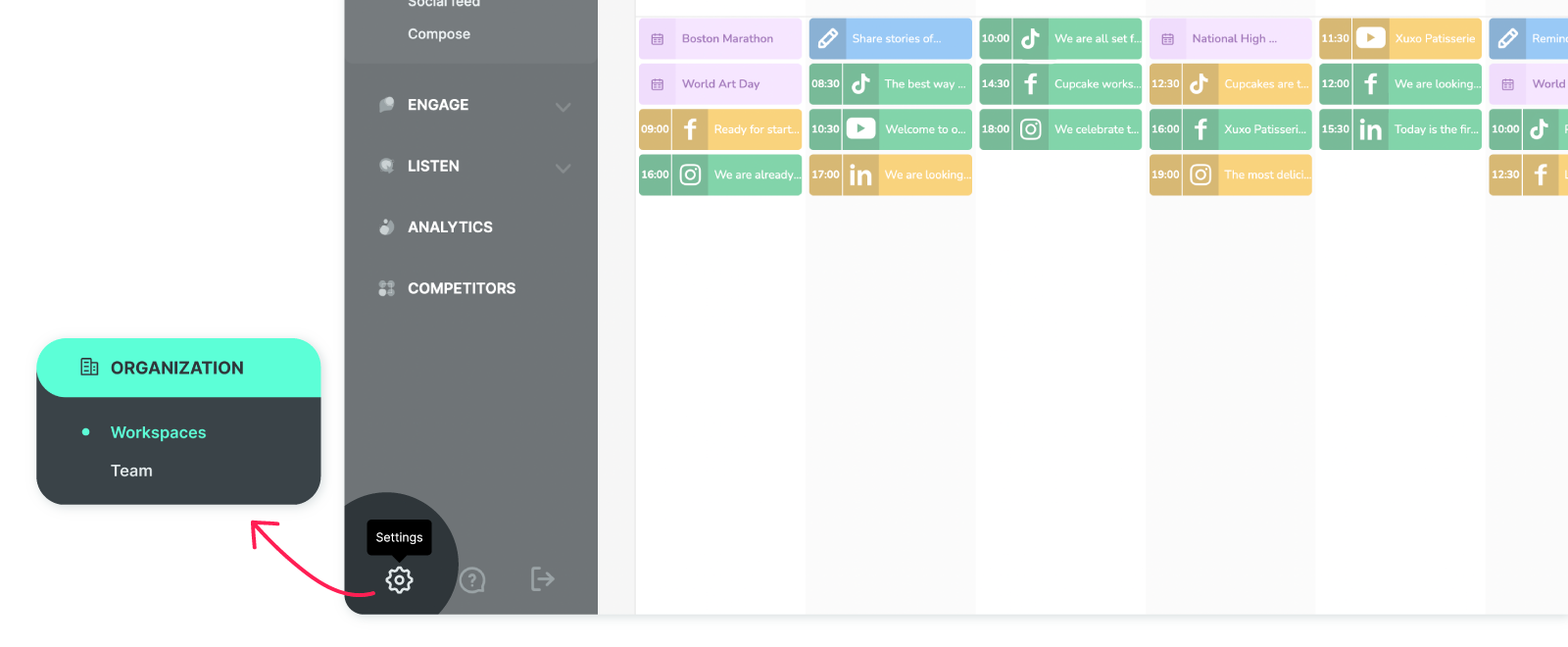
Click 'Settings,' and you’ll land directly in the 'Workspaces' section on the next screen.
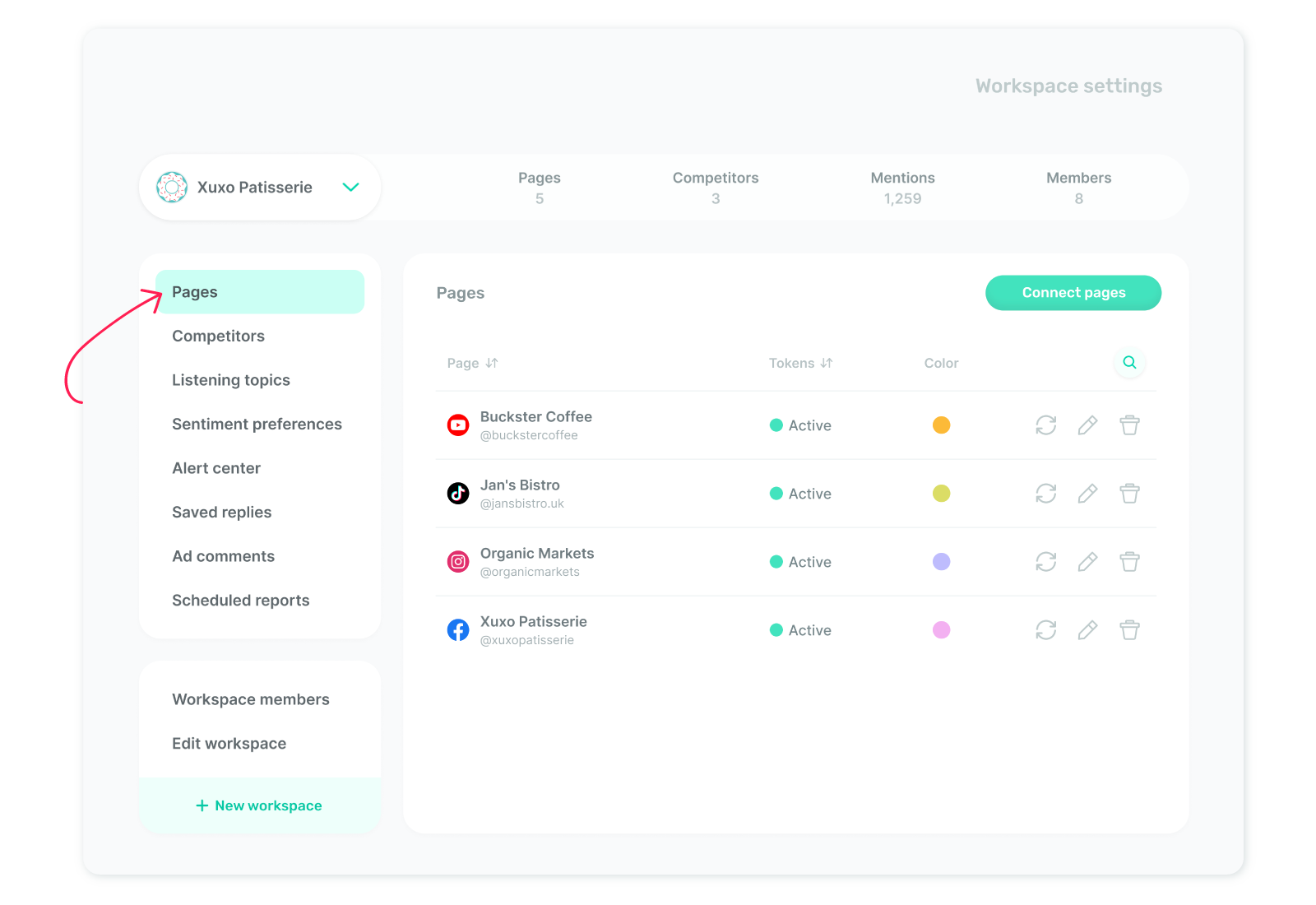
From the left menu, click on 'Pages.'
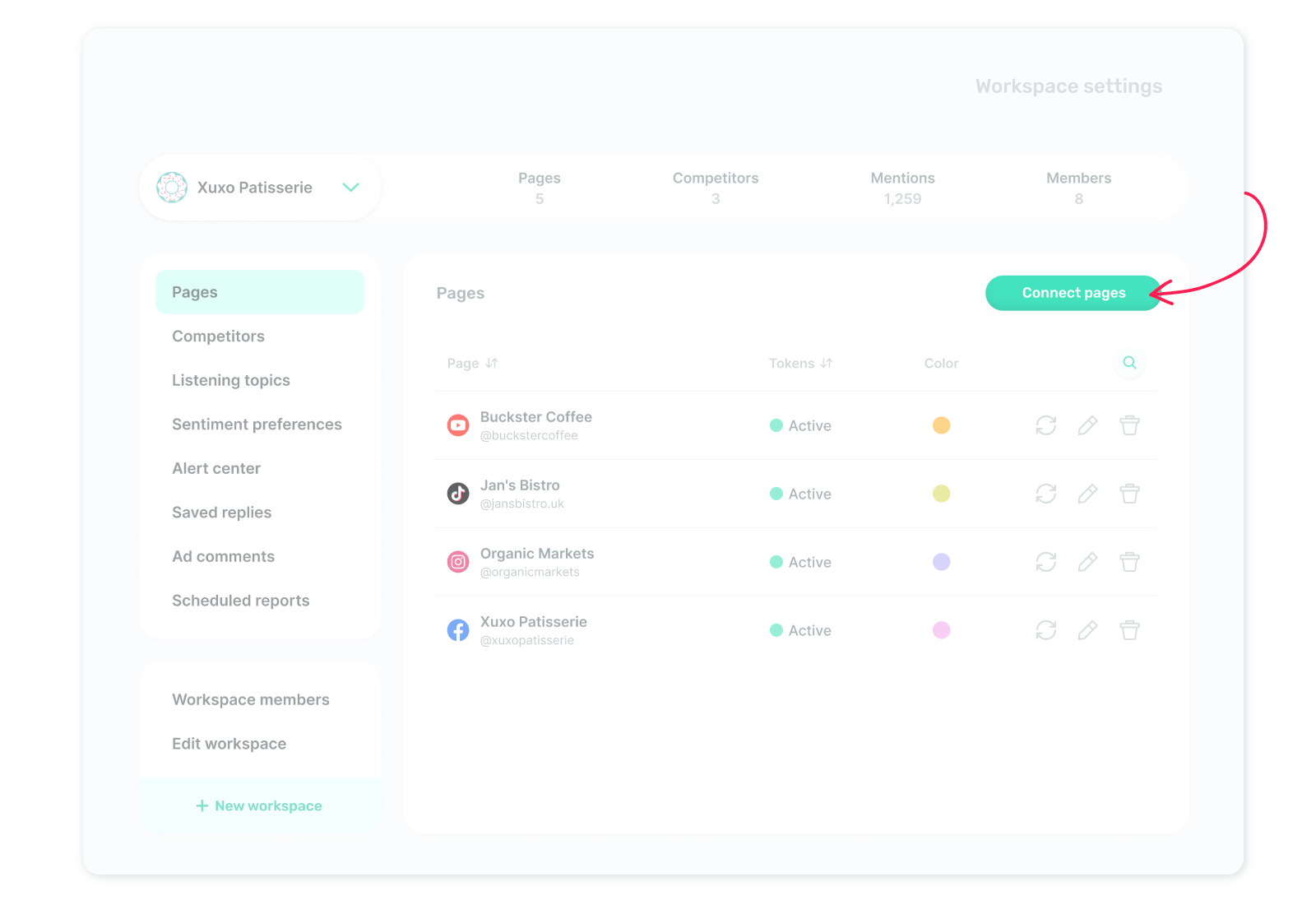
Click on ‘Connect pages’ to continue.
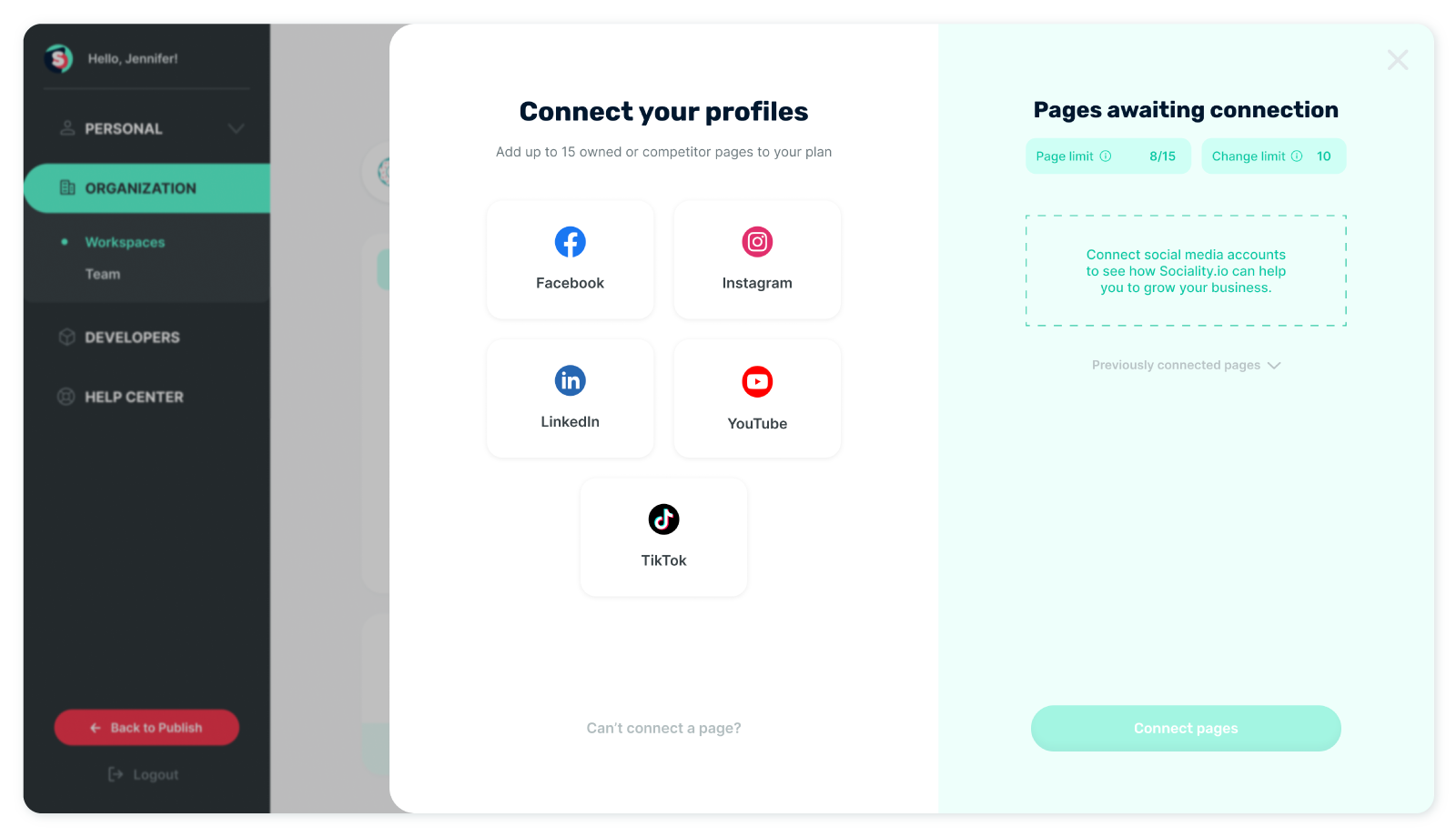
Choose a social media platform from the newly opened window you want Sociality.io to connect with. You can also see the pages awaiting connection, previously connected pages, page limit, and change limit on that screen.
You’ll be redirected to your selected platform in the next step. Make sure you're logged into the correct account that has access to the pages you want to connect with Sociality.io.
Choose the pages you want to add to Sociality.io from the displayed screen.
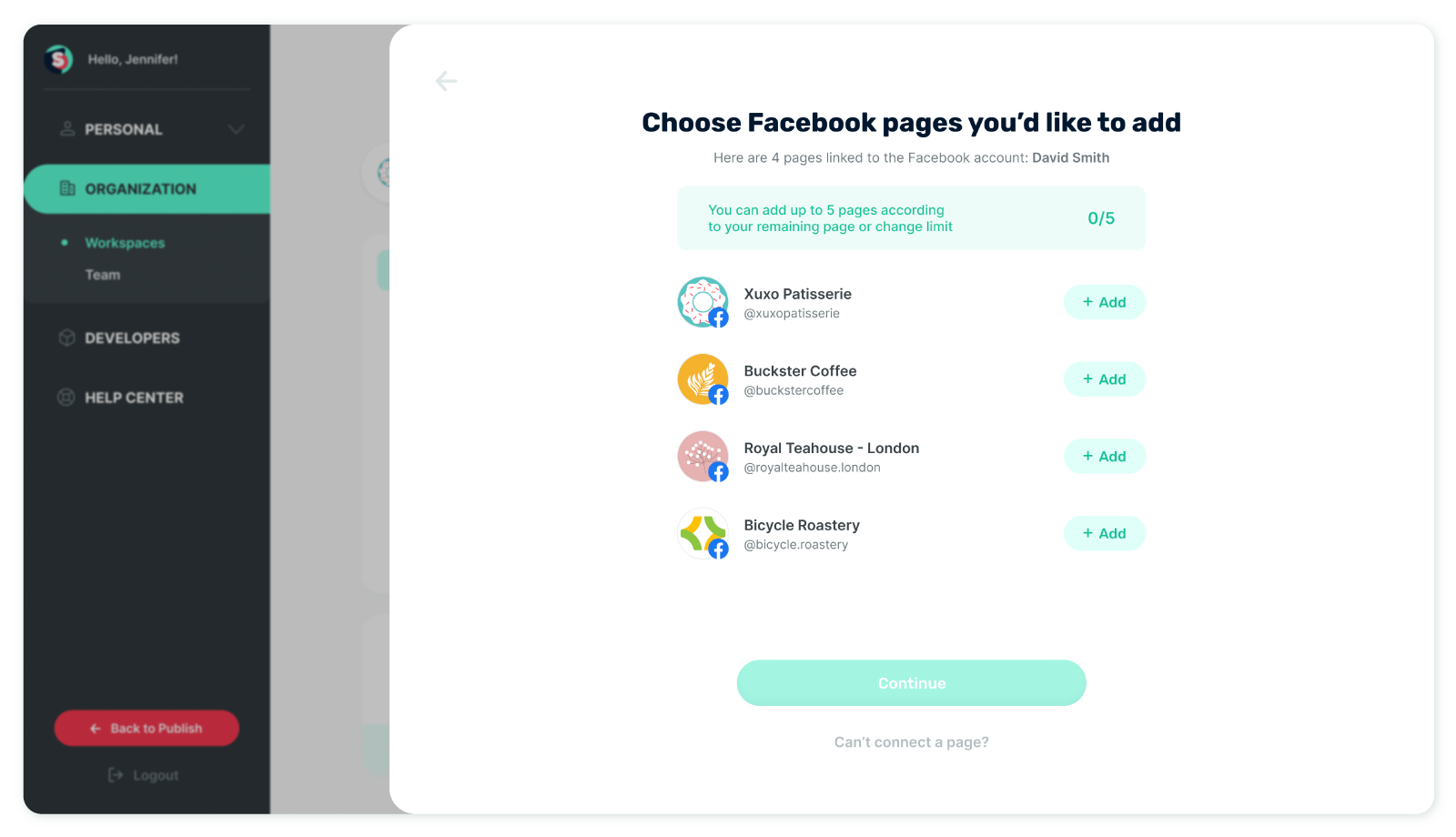
Once you’ve selected the pages to connect, click ‘Continue’.
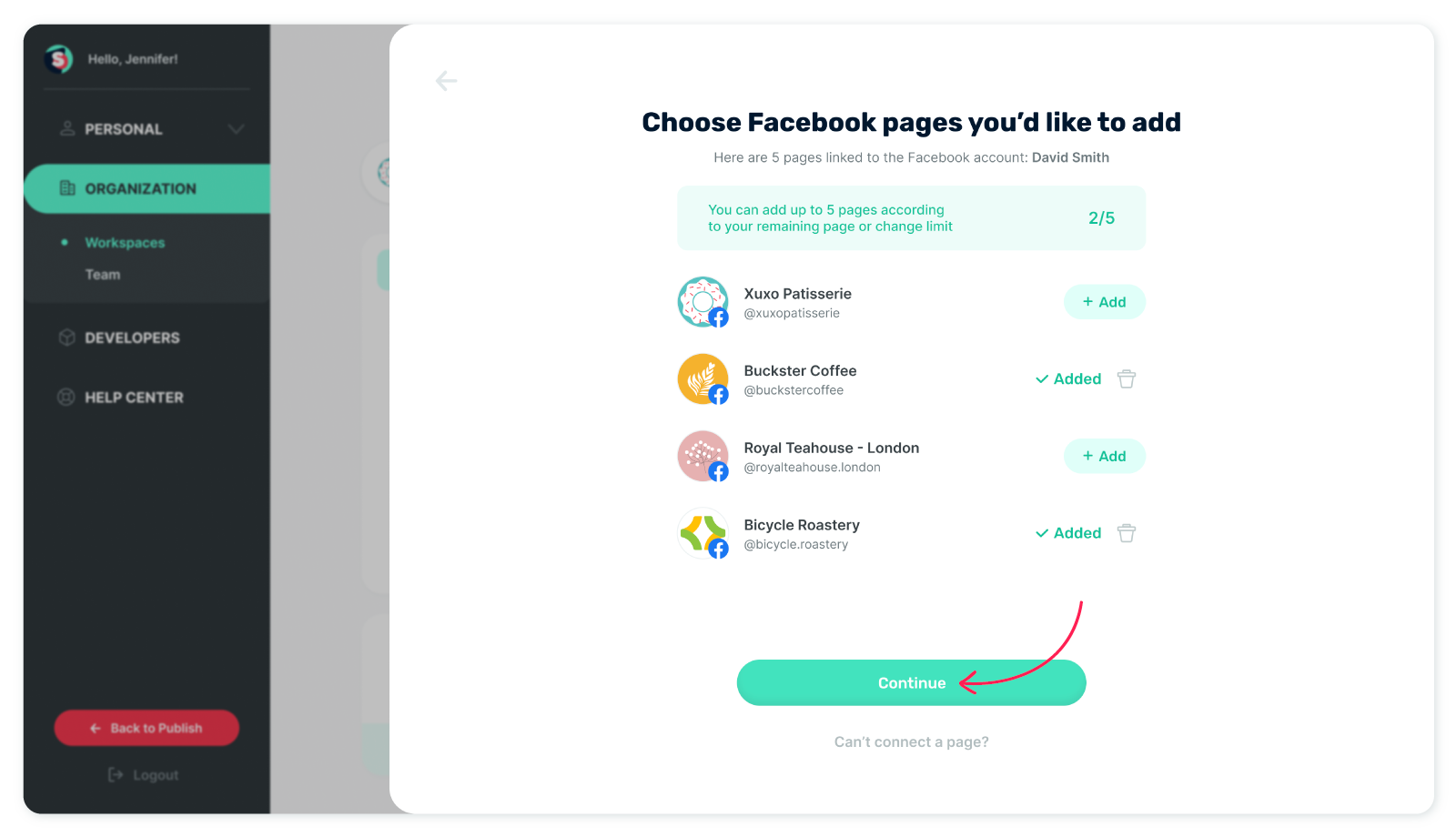
Next, the pages you’ve added will appear under 'Pages awaiting connection.' Simply click the 'Connect pages' button to proceed.
Cheers! 🎉 Your pages have been added to Sociality.io successfully.
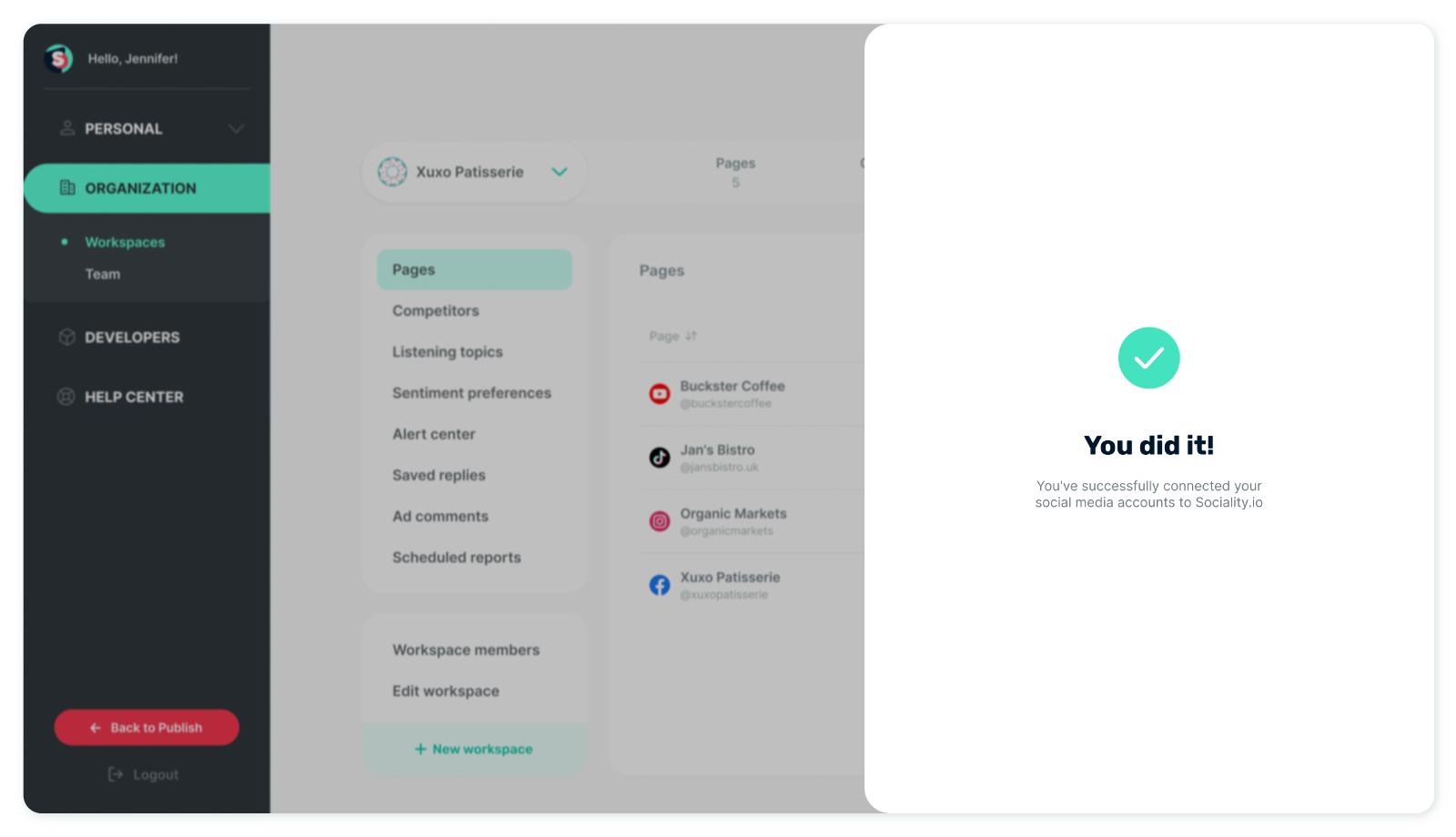
You can see the connected pages under the ‘Pages’ tab.
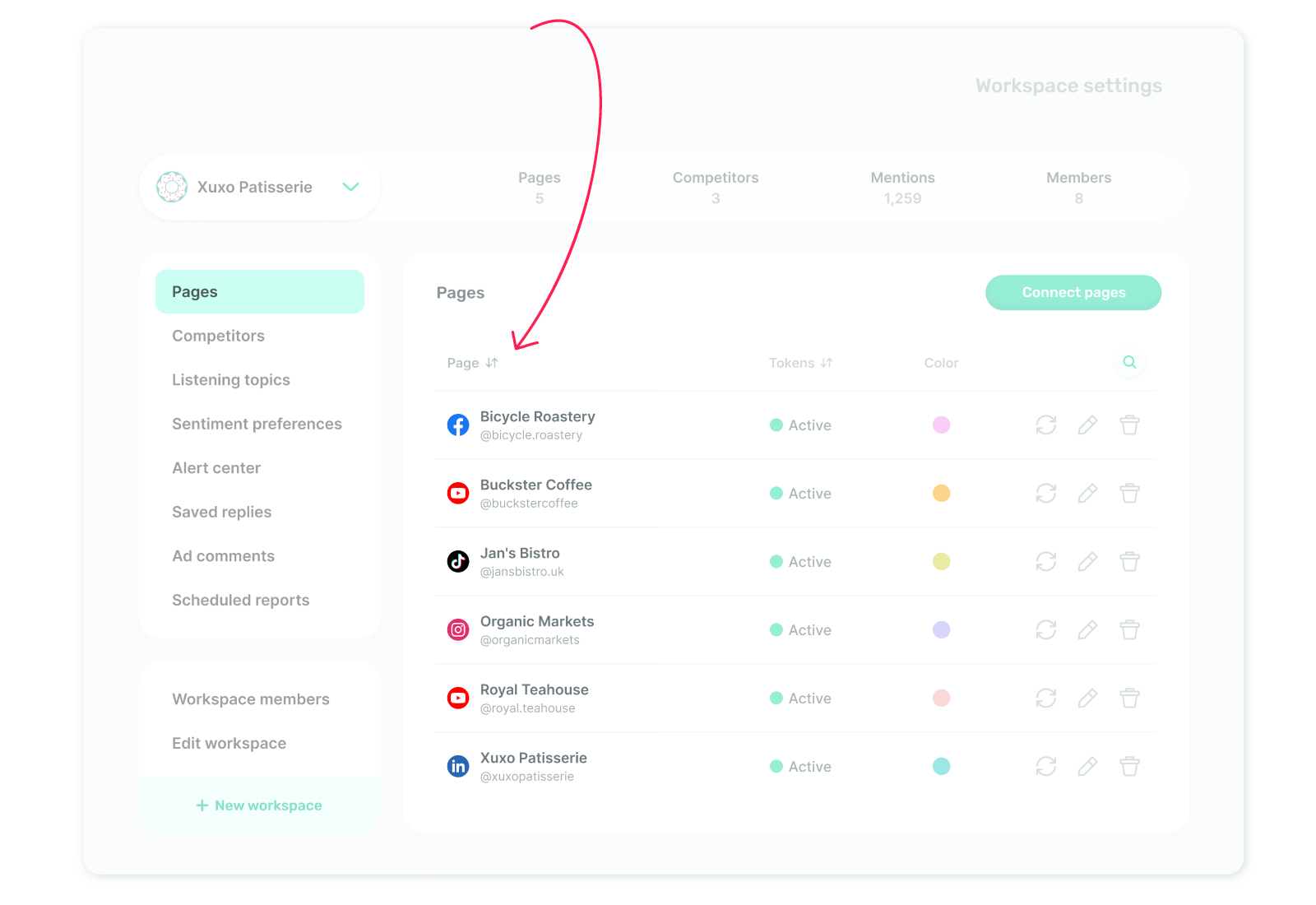
Once you've seamlessly integrated your pages with Sociality.io, you gain the freedom to personalize your page to your heart's content. This includes selecting your preferred color scheme and setting your time zone to ensure a perfect fit.
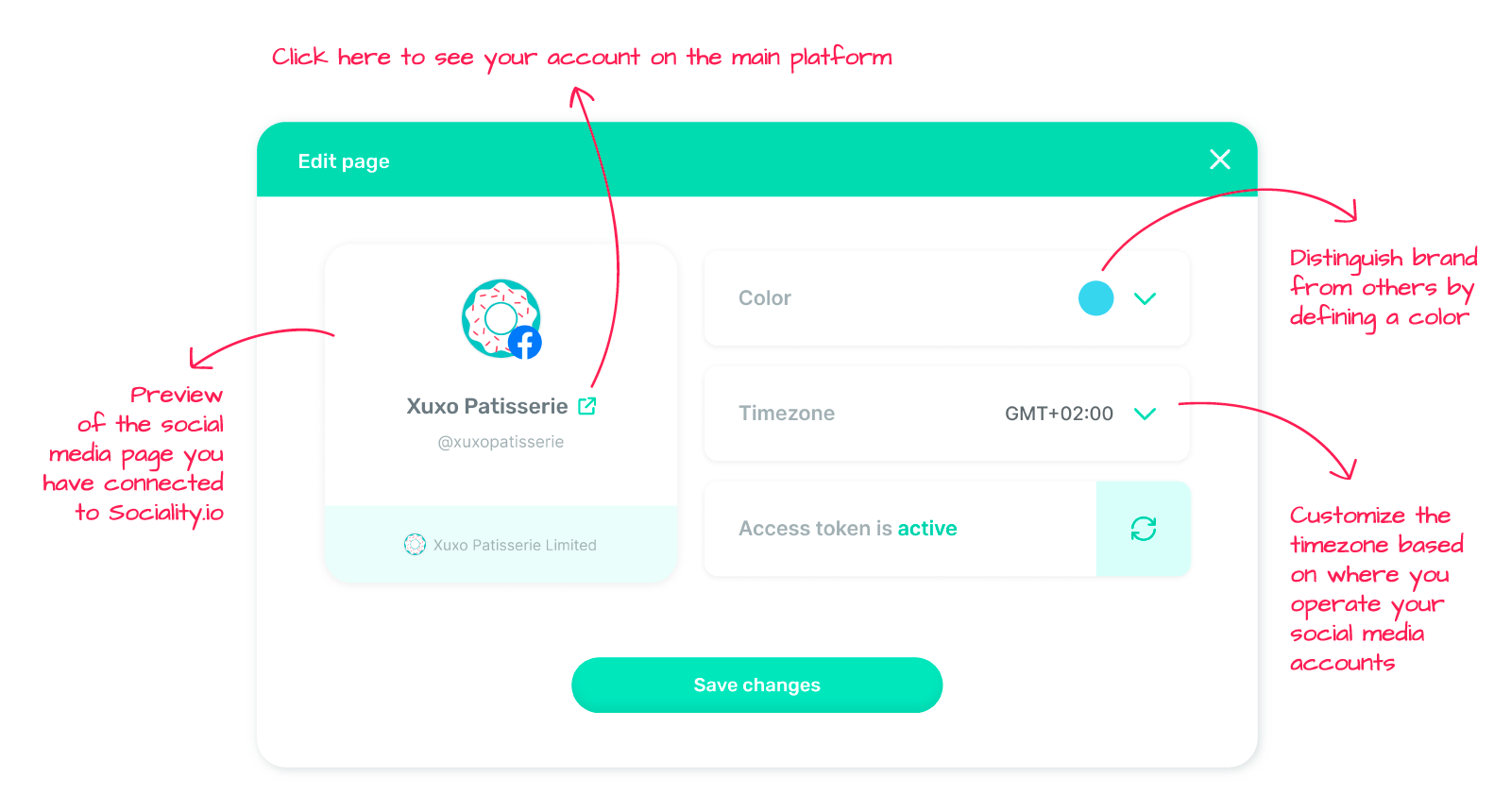
Click “Save changes”.
Congratulations on your successful integration with Sociality.io! Now, you can experience the convenience of all-in-one social media management at your fingertips. ✨
Platform-specific page connection shortcuts:
Experiencing difficulties with page connections? 👉 Troubleshoot connecting pages to Sociality.io. Here is the solution checklist!